

When performing manual updates it’s always recommended to make a full backup of your site first, so if anything goes wrong, you’ll still have all your data.
Using Ghost CLI backup
The fastest way to perform a backup is to use Ghost CLI to automatically generate a zip file containing all of your site data using theghost backup command.
Manual backup methods
If you need more control over your backups, or need to back up a Docker installation, the following sections explain how to manually back up different parts of your Ghost site.What’s included: The export from Ghost Admin is great for moving content between sites, but doesn’t include comments, member activity history, or your media files. For disaster recovery or exact site replication, back up your database and content folder directly.
Database backup
For Docker installations:Content folder backup
For Docker installations:Download to local machine
Export from Ghost Admin
Log into Ghost Admin and go to Settings → Advanced → Import/Export. Open the Export tab and click All data.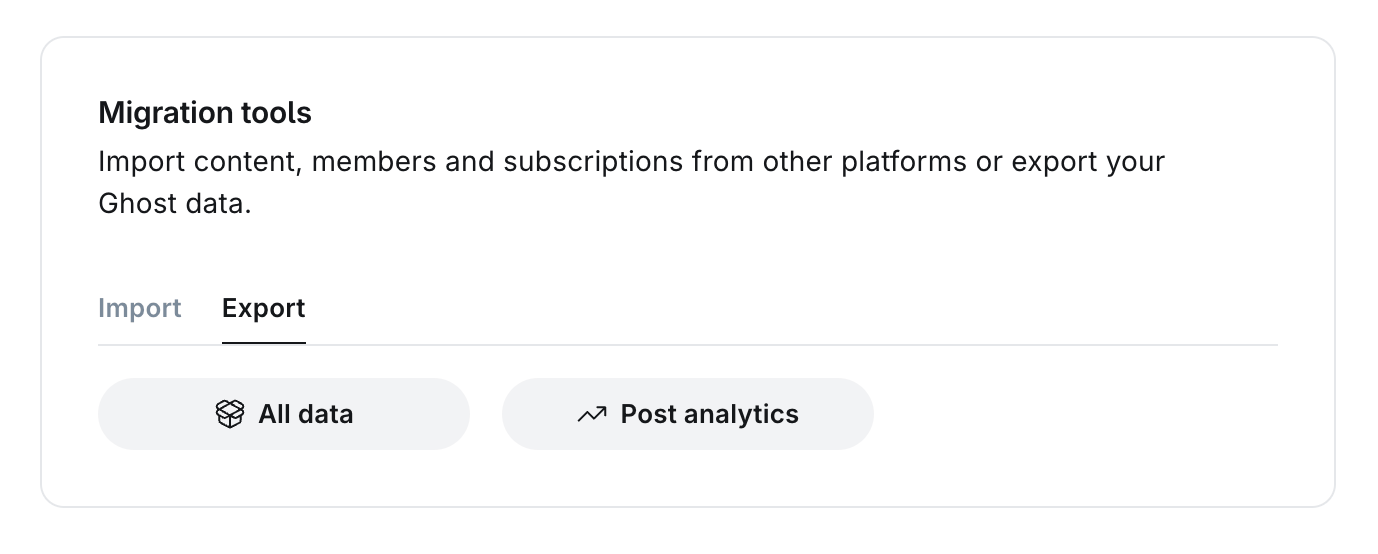
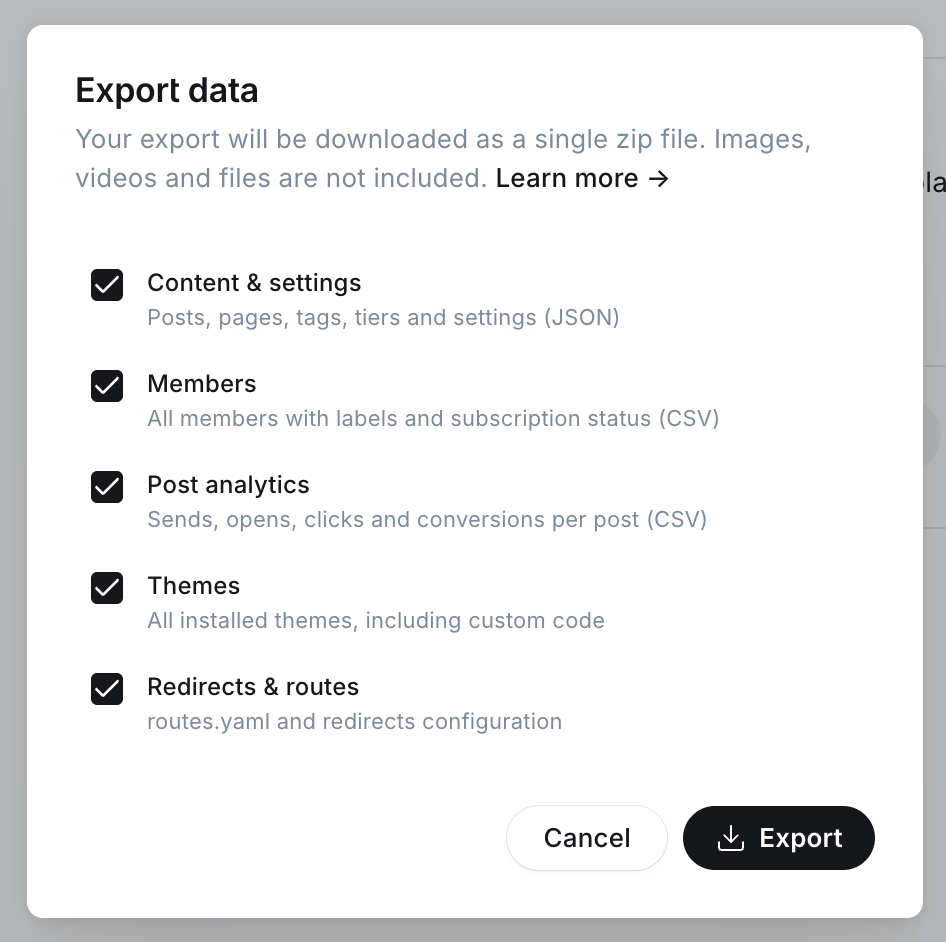
.zip file containing:
Copy images, files and media
To download images and media, you’ll need shell access to your server. If you’re unable to gain shell access to your current web host, you may need to contact their support team. When logged in to your server,cd to the content directory: cd /var/www/ghost/content
Then, zip the images and other file storage directories with their contents: zip -r content-files.zip images/ files/ media/
Then, to move the zip files from your server onto your local machine: scp user@123.456.789.123:/var/www/ghost/content/content-files.zip ~/Desktop/content-files.zip
Restoring your data from a manual backup
Restoring database and content backups
If you backed up your MySQL database and content folder, follow these steps to restore them: For Docker installations:Copy images, files and media
All images, files and media need to be copied over to your new install. After doing that, run this command to fix permissions:sudo chown -R ghost:ghost content
Once this is complete, restart Ghost: ghost restart
Import content
Unzip your export. Then go to Settings → Advanced → Import/Export in Ghost Admin, click Universal import on the Import tab, and selectexport.json.
Upload routes and redirects
Go to Settings → Advanced → Labs. Under Migration options, uploadredirects.yaml and routes.yaml from your export.
Upload theme
Go to Settings → Site → Theme → Change theme, click Upload theme, and select the theme.zip from the themes folder in your export to get your site looking the same way it did before.
Reconnect Stripe
Skip this step if you’re not using Stripe for paid subscriptions. To import paid members, Ghost needs to be connected to Stripe in Live mode before you import your members. Make sure to connect Ghost to the same Stripe account you were using on your old installation - learn more about how to connect a Stripe account in this guide.Import members
With Stripe connected, go to Members, click the settings icon, choose Import members, and selectmembers.csv from your export. You’ll receive an email notification when the import process has completed.