> ## Documentation Index
> Fetch the complete documentation index at: https://docs.ghost.org/llms.txt
> Use this file to discover all available pages before exploring further.
# Migrating from Buttondown
> Migrate from Buttondown and import your content to Ghost with this guide
If you're a Ghost(Pro) customer, our team may be able to help you migrate your content and subscribers. Learn more about our [Concierge service](https://ghost.org/concierge/).
## Export your subscribers
To get started, export your current subscribers in CSV format.
## Import subscribers to Ghost
Under the Ghost Admin members settings, select the import option from the settings menu.
 Upload your CSV file to Ghost, and map each of the fields contained in your export file to the corresponding fields in Ghost. The **email** field is required in order to create members in Ghost, while the other fields are optional.
To import paid members with an existing Stripe subscription, you must import their **Stripe customer ID**.
Upload your CSV file to Ghost, and map each of the fields contained in your export file to the corresponding fields in Ghost. The **email** field is required in order to create members in Ghost, while the other fields are optional.
To import paid members with an existing Stripe subscription, you must import their **Stripe customer ID**.
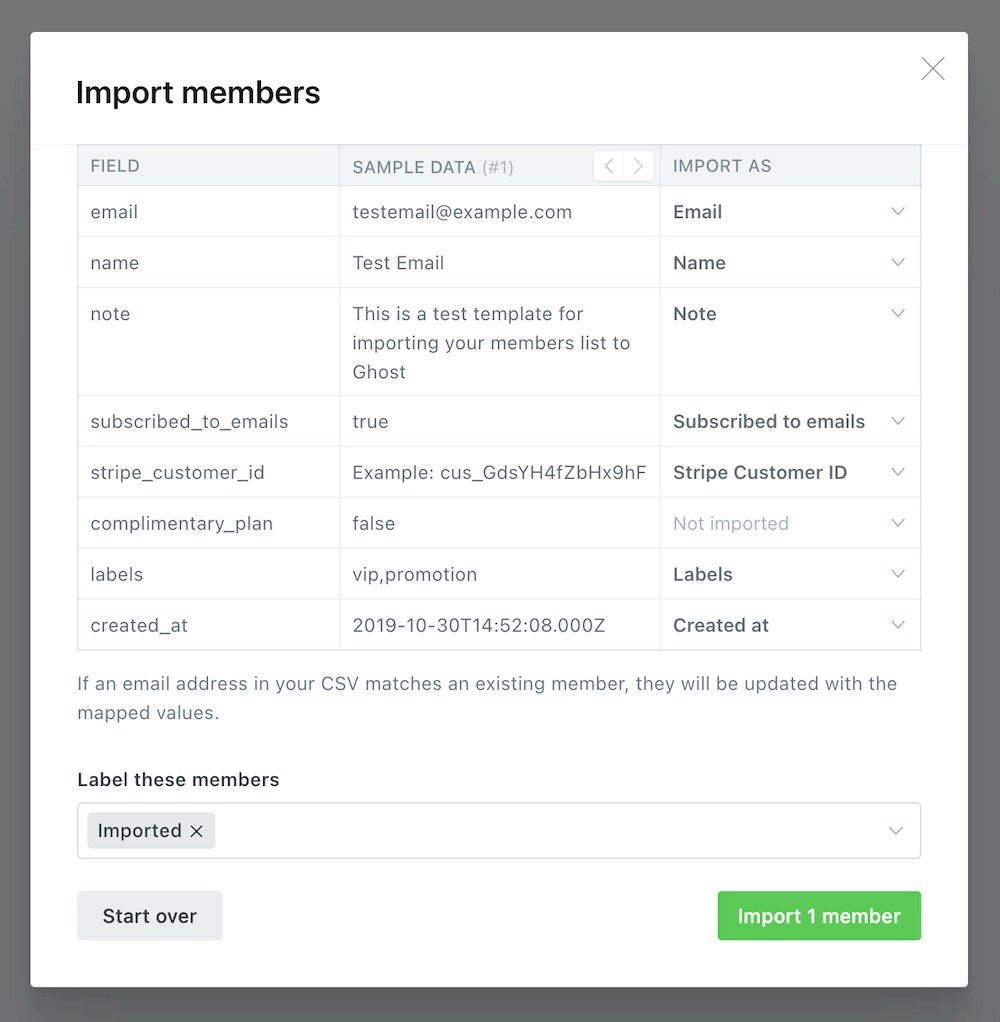 Once the import has completed, all your subscribers will be migrated to Ghost. There’s nothing else you need to do, members can now log into your site and receive email newsletters.