> ## Documentation Index
> Fetch the complete documentation index at: https://docs.ghost.org/llms.txt
> Use this file to discover all available pages before exploring further.
# Working With Gridsome
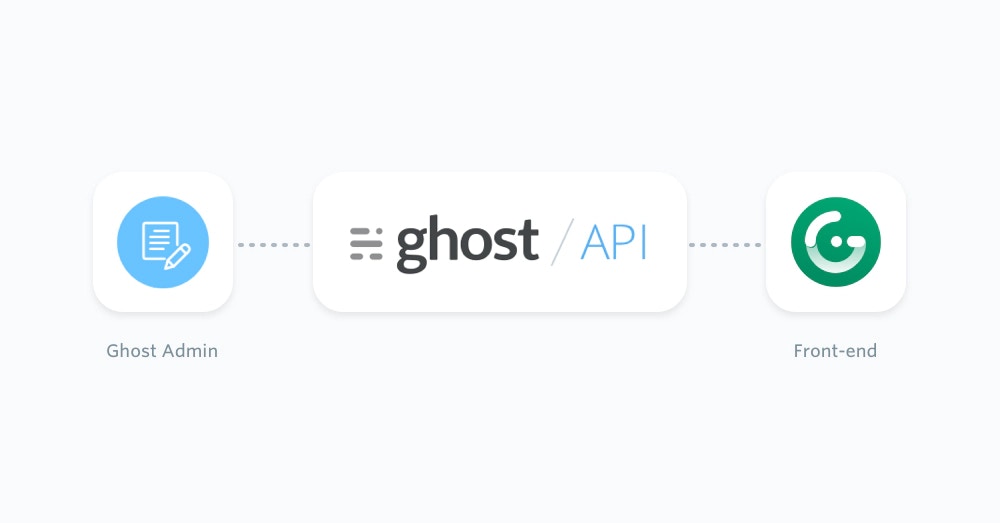
> Learn how to spin up a site using Ghost as a headless CMS and build a completely custom front-end with the static site generator Gridsome.
***
 ## Prerequisites
This configuration of a Ghost publication requires existing moderate knowledge of JavaScript as well as Vue.js. You’ll need an active Ghost account to get started, which can either be self-hosted or using a [Ghost(Pro) account](https://ghost.org/pricing/).
Finally, you’ll need to install Gridsome globally via the command line in your terminal using the following:
```bash theme={"dark"}
npm install -g @gridsome/cli
```
Since the [Gridsome Blog Starter](https://gridsome.org/starters/gridsome-blog-starter) works with Markdown files, we’ll cover the adjustments required to swap Markdown files for content coming from your Ghost site.
Creating a new project with the Blog Starter can be done with this command:
```bash theme={"dark"}
gridsome create gridsome-ghost https://github.com/gridsome/gridsome-starter-blog.git
```
Navigate into the new project:
```bash theme={"dark"}
cd gridsome-ghost
```
To test everything installed correctly, use the following command to run your project:
```bash theme={"dark"}
gridsome develop
```
Then navigate to `http://localhost:8080/` in a browser and view the newly created Gridsome site.
### Minimum required version
To make sure that Ghost works with Gridsome, you’ll need to update the dependencies and run **Gridsome version > 0.6.9** (the version used for this documentation).
## Getting started
To get started fetching the content from Ghost, install the official [Ghost source plugin](https://gridsome.org/plugins/@gridsome/source-ghost):
```bash theme={"dark"}
yarn add @gridsome/source-ghost
```
Once installed, you’ll need to add the plugin to the `gridsome.config.js` file:
```js theme={"dark"}
plugins: [
{
use: '@gridsome/source-ghost',
options: {
baseUrl: 'https://demo.ghost.io',
contentKey: '22444f78447824223cefc48062',
routes: {
post: '/:slug',
page: '/:slug'
}
}
}
]
```
Change the `baseUrl` value to the URL of your Ghost site. For Ghost(Pro) customers, this is the Ghost URL ending in `.ghost.io`, and for people using the self-hosted version of Ghost, it’s the same URL used to access your site.
Next, update the `contentKey` value to a key associated with the Ghost site. A key can be provided by creating an integration within the Ghost Admin. Navigate to Integrations and click “Add new integration”. Name the integration, something related like “Gridsome”, click create.
## Prerequisites
This configuration of a Ghost publication requires existing moderate knowledge of JavaScript as well as Vue.js. You’ll need an active Ghost account to get started, which can either be self-hosted or using a [Ghost(Pro) account](https://ghost.org/pricing/).
Finally, you’ll need to install Gridsome globally via the command line in your terminal using the following:
```bash theme={"dark"}
npm install -g @gridsome/cli
```
Since the [Gridsome Blog Starter](https://gridsome.org/starters/gridsome-blog-starter) works with Markdown files, we’ll cover the adjustments required to swap Markdown files for content coming from your Ghost site.
Creating a new project with the Blog Starter can be done with this command:
```bash theme={"dark"}
gridsome create gridsome-ghost https://github.com/gridsome/gridsome-starter-blog.git
```
Navigate into the new project:
```bash theme={"dark"}
cd gridsome-ghost
```
To test everything installed correctly, use the following command to run your project:
```bash theme={"dark"}
gridsome develop
```
Then navigate to `http://localhost:8080/` in a browser and view the newly created Gridsome site.
### Minimum required version
To make sure that Ghost works with Gridsome, you’ll need to update the dependencies and run **Gridsome version > 0.6.9** (the version used for this documentation).
## Getting started
To get started fetching the content from Ghost, install the official [Ghost source plugin](https://gridsome.org/plugins/@gridsome/source-ghost):
```bash theme={"dark"}
yarn add @gridsome/source-ghost
```
Once installed, you’ll need to add the plugin to the `gridsome.config.js` file:
```js theme={"dark"}
plugins: [
{
use: '@gridsome/source-ghost',
options: {
baseUrl: 'https://demo.ghost.io',
contentKey: '22444f78447824223cefc48062',
routes: {
post: '/:slug',
page: '/:slug'
}
}
}
]
```
Change the `baseUrl` value to the URL of your Ghost site. For Ghost(Pro) customers, this is the Ghost URL ending in `.ghost.io`, and for people using the self-hosted version of Ghost, it’s the same URL used to access your site.
Next, update the `contentKey` value to a key associated with the Ghost site. A key can be provided by creating an integration within the Ghost Admin. Navigate to Integrations and click “Add new integration”. Name the integration, something related like “Gridsome”, click create.
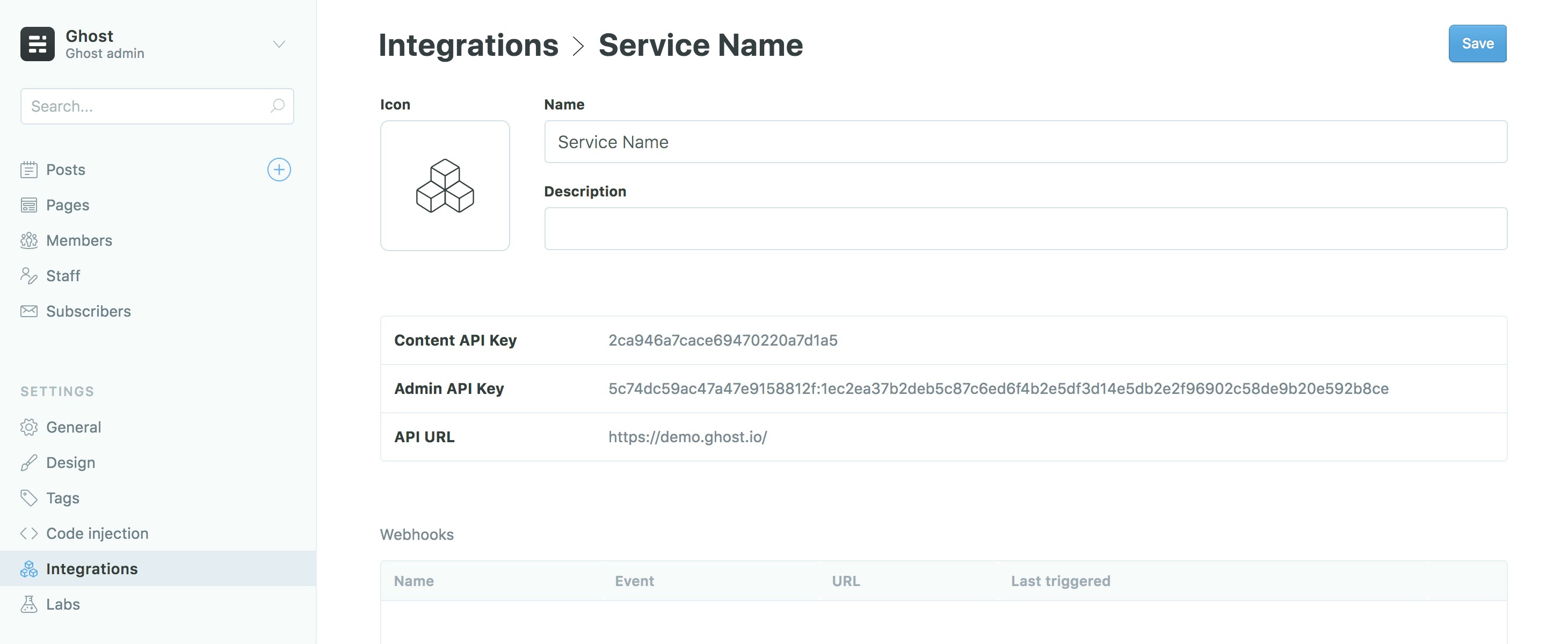 For more detailed steps on setting up Integrations check out [our documentation on the Content API](/content-api/#authentication).
You can remove the `@gridsome/source-filesystem` plugin if you’re not planning on using Markdown files for your content.
### Post index page
The Gridsome Blog Starter comes with pages and templates which allows you to use Ghost as a headless CMS. To create an index page that loads all of your posts, start by updating the main index page. Find the `Index.vue` file in `/src/pages` of your project and replace the `` section with the following:
```vue theme={"dark"}
{
posts: allGhostPost(
sortBy: "published_at",
order: DESC,
) {
edges {
node {
title
description: excerpt
date: published_at (format: "D. MMMM YYYY")
path
slug
id
coverImage: feature_image
}
}
}
}
```
This code renames the GraphQL identifiers in the Gridsome starter of `description` and `coverImage` to `excerpt` and `feature_image`, which matches the data coming from the Ghost API.
### Single post page
Templates in Gridsome follow a [specific naming convention](https://gridsome.org/docs/templates) which uses the type names as defined in the GraphQL schema, so the existing `Post.vue` file in `/src/templates/` needs to be renamed to `GhostPost.vue`.
Once this is done, replace the `` section in the template with the following:
```vue theme={"dark"}
query Post ($path: String!) {
post: ghostPost (path: $path) {
title
path
date: published_at (format: "D. MMMM YYYY")
tags {
id
title: name
path
}
description: excerpt
content: html
coverImage: feature_image
}
}
```
Gridsome automatically reloads when changes are made in the code and rebuilds the GraphQL schema. Navigate to `http://localhost:8080/` in a web browser to see the result.
For more detailed steps on setting up Integrations check out [our documentation on the Content API](/content-api/#authentication).
You can remove the `@gridsome/source-filesystem` plugin if you’re not planning on using Markdown files for your content.
### Post index page
The Gridsome Blog Starter comes with pages and templates which allows you to use Ghost as a headless CMS. To create an index page that loads all of your posts, start by updating the main index page. Find the `Index.vue` file in `/src/pages` of your project and replace the `` section with the following:
```vue theme={"dark"}
{
posts: allGhostPost(
sortBy: "published_at",
order: DESC,
) {
edges {
node {
title
description: excerpt
date: published_at (format: "D. MMMM YYYY")
path
slug
id
coverImage: feature_image
}
}
}
}
```
This code renames the GraphQL identifiers in the Gridsome starter of `description` and `coverImage` to `excerpt` and `feature_image`, which matches the data coming from the Ghost API.
### Single post page
Templates in Gridsome follow a [specific naming convention](https://gridsome.org/docs/templates) which uses the type names as defined in the GraphQL schema, so the existing `Post.vue` file in `/src/templates/` needs to be renamed to `GhostPost.vue`.
Once this is done, replace the `` section in the template with the following:
```vue theme={"dark"}
query Post ($path: String!) {
post: ghostPost (path: $path) {
title
path
date: published_at (format: "D. MMMM YYYY")
tags {
id
title: name
path
}
description: excerpt
content: html
coverImage: feature_image
}
}
```
Gridsome automatically reloads when changes are made in the code and rebuilds the GraphQL schema. Navigate to `http://localhost:8080/` in a web browser to see the result.
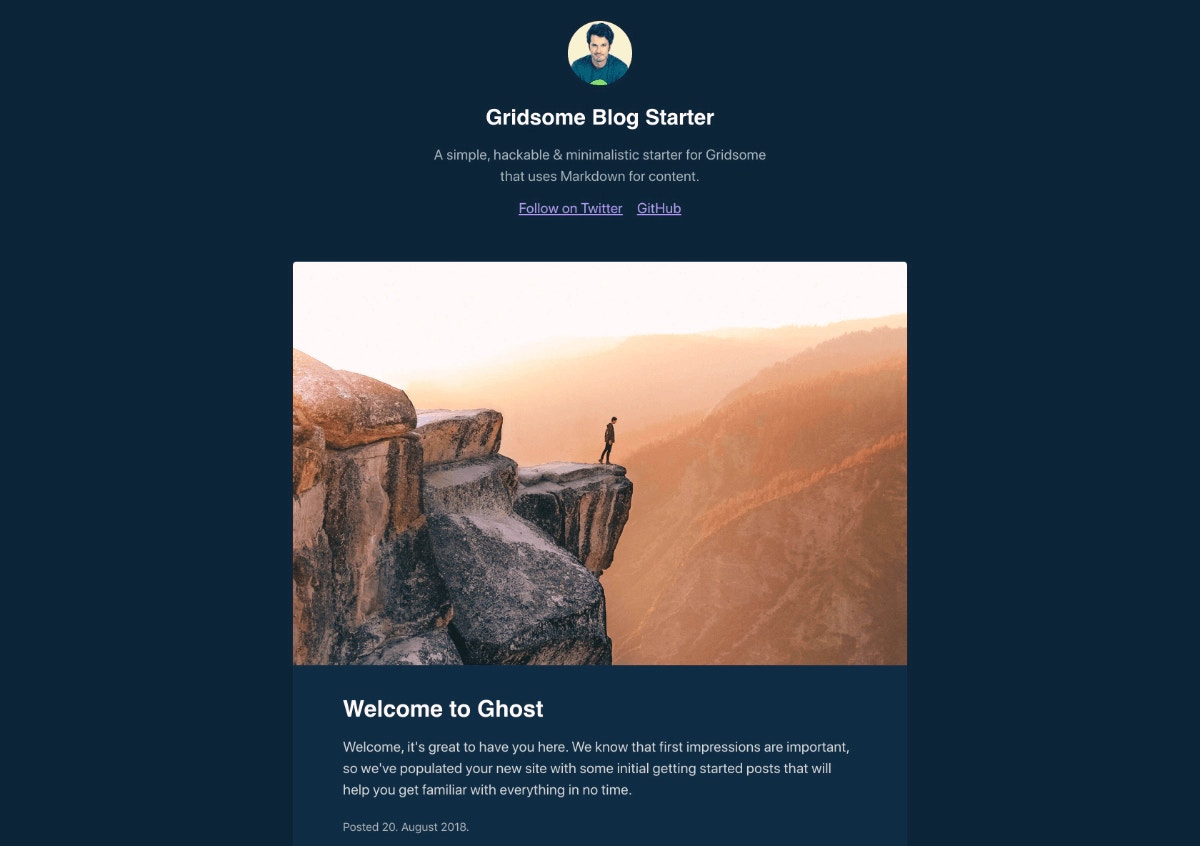 That’s it! Your site now loads posts from your Ghost site, lists them on the home page and renders them in a single view 👏🏼
## Next steps
Discover how to create tag and author archive pages or use other content from Ghost in your Gridsome site in our recipes on the next page. For further information, check out the [Ghost Content API documentation](/content-api/) and the [official Gridsome documentation](https://gridsome.org/docs).
## Examples
The flexibility of the Ghost Content API allows you to feed posts, pages and any other pieces of content from your Ghost site into a Gridsome front-end. Below are a few code examples of how to do this.
If you just landed here, see the [getting started](/jamstack/gridsome/) with Gridsome page for more context!
### Create tag archive pages
Using the [Gridsome Blog Starter](https://gridsome.org/starters/gridsome-blog-starter) as a starting point, rename the current `Tag.vue` template to `GhostTag.vue` and replace the `` section with the following:
```vue theme={"dark"}
query Tag ($path: String!) {
tag:ghostTag (path: $path) {
title: name
slug
path
belongsTo {
edges {
node {
...on GhostPost {
title
path
date: published_at (format: "D. MMMM YYYY")
description: excerpt
coverImage: feature_image
content: html
slug
}
}
}
}
}
}
```
You can now access the tag archive page on `/tag/:slug` which will show all the posts filed under that tag.
### Create author archive pages
To add an author archive page to your site, create a new file in `/src/templates` called `GhostAuthor.vue`. Use the following code within `GhostAuthor.vue`:
```vue theme={"dark"}
That’s it! Your site now loads posts from your Ghost site, lists them on the home page and renders them in a single view 👏🏼
## Next steps
Discover how to create tag and author archive pages or use other content from Ghost in your Gridsome site in our recipes on the next page. For further information, check out the [Ghost Content API documentation](/content-api/) and the [official Gridsome documentation](https://gridsome.org/docs).
## Examples
The flexibility of the Ghost Content API allows you to feed posts, pages and any other pieces of content from your Ghost site into a Gridsome front-end. Below are a few code examples of how to do this.
If you just landed here, see the [getting started](/jamstack/gridsome/) with Gridsome page for more context!
### Create tag archive pages
Using the [Gridsome Blog Starter](https://gridsome.org/starters/gridsome-blog-starter) as a starting point, rename the current `Tag.vue` template to `GhostTag.vue` and replace the `` section with the following:
```vue theme={"dark"}
query Tag ($path: String!) {
tag:ghostTag (path: $path) {
title: name
slug
path
belongsTo {
edges {
node {
...on GhostPost {
title
path
date: published_at (format: "D. MMMM YYYY")
description: excerpt
coverImage: feature_image
content: html
slug
}
}
}
}
}
}
```
You can now access the tag archive page on `/tag/:slug` which will show all the posts filed under that tag.
### Create author archive pages
To add an author archive page to your site, create a new file in `/src/templates` called `GhostAuthor.vue`. Use the following code within `GhostAuthor.vue`:
```vue theme={"dark"}
{{ $page.author.name }}
query Author ($path: String!) {
author:ghostAuthor (path: $path) {
name
path
profile_image
belongsTo {
edges {
node {
...on GhostPost {
title
path
date: published_at (format: "D. MMMM YYYY")
description: excerpt
coverImage: feature_image
content: html
slug
}
}
}
}
}
}
```
This will create an author page, which is available under `/author/:slug` rendering all posts written by this author, along with their unmodified author image (if available) and name.
### Retrieve Ghost settings
The [Gridsome Ghost Source Plugin](https://gridsome.org/plugins/@gridsome/source-ghost) adds site settings to `metaData` within the GraphQL schema. To retrieve that data use the following query:
```js theme={"dark"}
{
metaData {
ghost {
title
description
logo
icon
cover_image
facebook
twitter
lang
timezone
navigation {
label
url
}
url
}
}
}
```
## Further reading
Learn more about the Ghost API and specific endpoints in our [API documentation](/content-api/). Otherwise check out our Integrations and how you can deploy your Gridsome site to platforms such as [Netlify](https://ghost.org/integrations/netlify/).