> ## Documentation Index
> Fetch the complete documentation index at: https://docs.ghost.org/llms.txt
> Use this file to discover all available pages before exploring further.
# How Can I Backup My Site Data?
> Learn how to backup your self-hosted Ghost install
***
When performing manual updates it's always recommended to make a full backup of your site first, so if anything goes wrong, you'll still have all your data.
## Using Ghost CLI backup
The fastest way to perform a backup is to use Ghost CLI to automatically generate a zip file containing all of your site data using the `ghost backup` command.
## Manual backup methods
If you need more control over your backups, or need to back up a Docker installation, the following sections explain how to manually back up different parts of your Ghost site.
**What's included:** JSON exports are great for moving content between sites, but don't include email analytics, member engagement data, or comments. For disaster recovery or exact site replication, back up your database and content folder directly.
### Database backup
**For Docker installations:**
```bash theme={"dark"}
# Create a backup directory
mkdir -p ~/ghost-backups
# List containers to find your MySQL container
docker ps
# Export the database
docker exec MYSQL_CONTAINER_NAME mysqldump -u root -p ghost > ~/ghost-backups/ghost_backup.sql
```
**For standard Ghost CLI installations:**
```bash theme={"dark"}
# Create a backup directory
mkdir -p ~/ghost-backups
# Export the database (credentials are in config.production.json)
mysqldump -u ghost_user -p ghost_production > ~/ghost-backups/ghost_backup.sql
```
### Content folder backup
**For Docker installations:**
```bash theme={"dark"}
# Find your Ghost volume
docker volume ls
# Create a backup using a temporary container
docker run --rm \
-v ghost_ghost_data:/ghost_content \
-v ~/ghost-backups:/backup \
alpine \
tar czf /backup/ghost_content_backup.tar.gz -C /ghost_content .
```
**For standard Ghost CLI installations:**
```bash theme={"dark"}
# Create a compressed backup of content
cd /var/www/ghost
tar czf ~/ghost-backups/ghost_content_backup.tar.gz content/
```
### Download to local machine
```bash theme={"dark"}
# Using rsync
rsync -av your_username@your_server:~/ghost-backups/ ./ghost-backups/
# Or using scp
scp -r your_username@your_server:~/ghost-backups/ ./ghost-backups/
```
***
### Export content
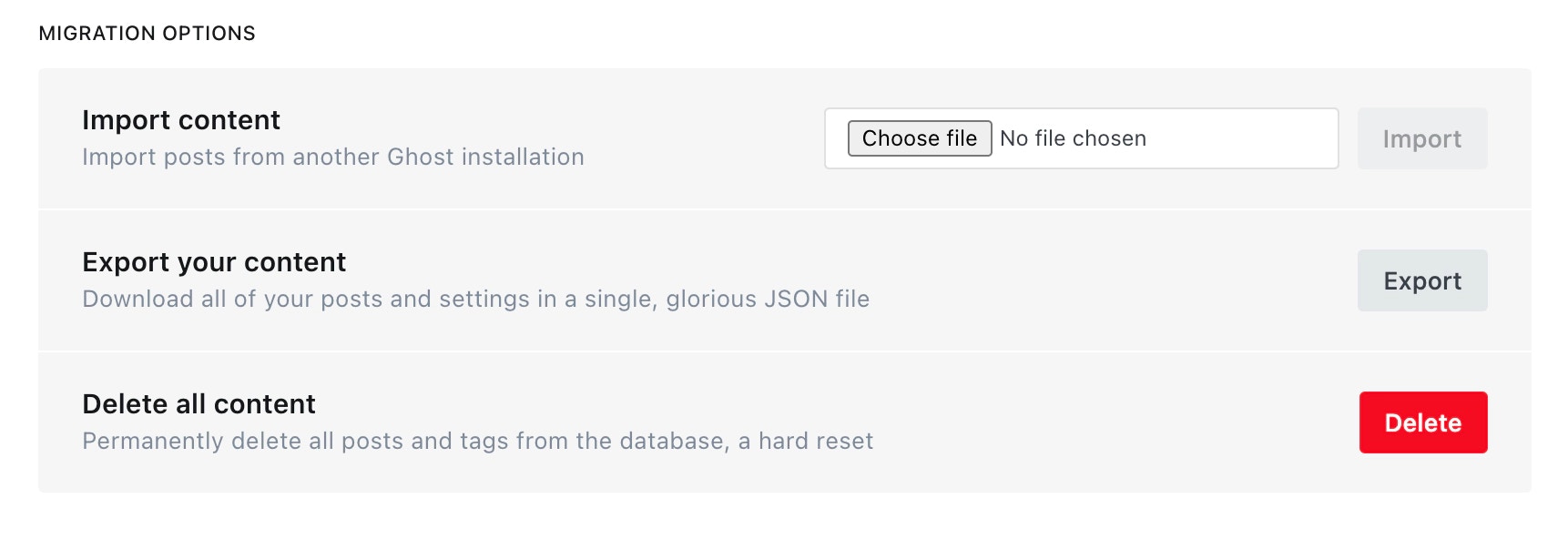
Log into Ghost Admin, navigate to the**Labs**view, and click**Export**to download all content. This will be a`.json`file, with a name like`my-site.ghost.2020-09-30-14-15-49.json`.
 ### Download routes and redirects
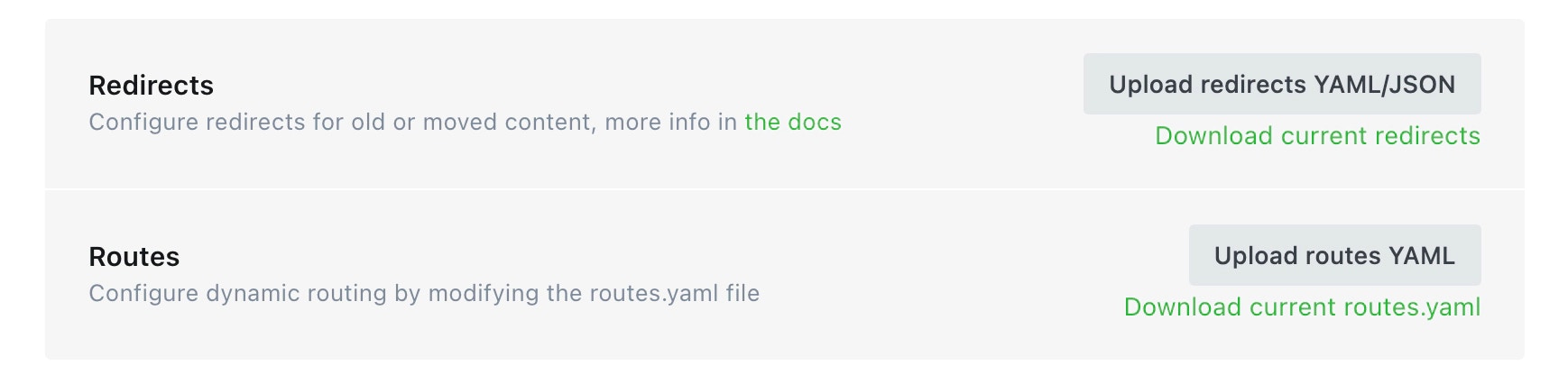
Staying on the**Labs**page, click**Download current redirects**to get your redirects file. This will be called`redirects.yaml`or`redirects.json`depending on your Ghost version. If you’re using custom routes, click**Download current routes.yaml**to get your`routes.yaml`file.
### Download routes and redirects
Staying on the**Labs**page, click**Download current redirects**to get your redirects file. This will be called`redirects.yaml`or`redirects.json`depending on your Ghost version. If you’re using custom routes, click**Download current routes.yaml**to get your`routes.yaml`file.
 ### Download themes
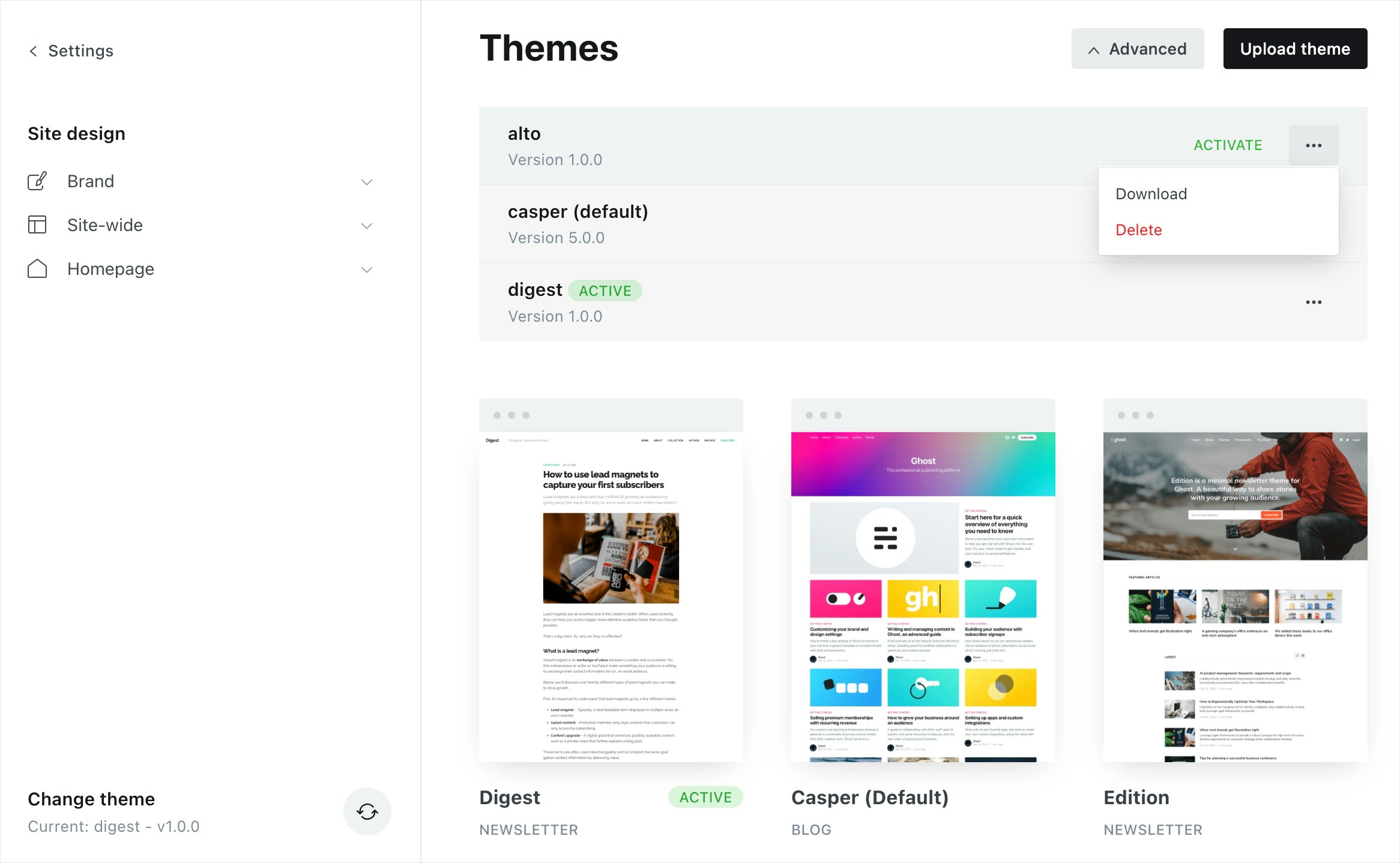
Navigate to the**Design**settings page, and navigate to the themes section to download your active theme, and any other themes you want to store. This will be a`.zip`file.
### Download themes
Navigate to the**Design**settings page, and navigate to the themes section to download your active theme, and any other themes you want to store. This will be a`.zip`file.
 ### Copy images, files and media
To download images and media, you’ll need shell access to your server. If you’re unable to gain shell access to your current web host, you may need to contact their support team.
When logged in to your server,`cd`to the`content`directory: `cd /var/www/ghost/content`
Then,`zip`the`images`and other file storage directories with their contents `zip -r content-files.zip images/ files/ media/`
Then, to move the zip files from your server onto your local machine. `scp user@123.456.789.123:/var/www/ghost/content/content-files.zip ~/Desktop/content-files.zip`
### Export members
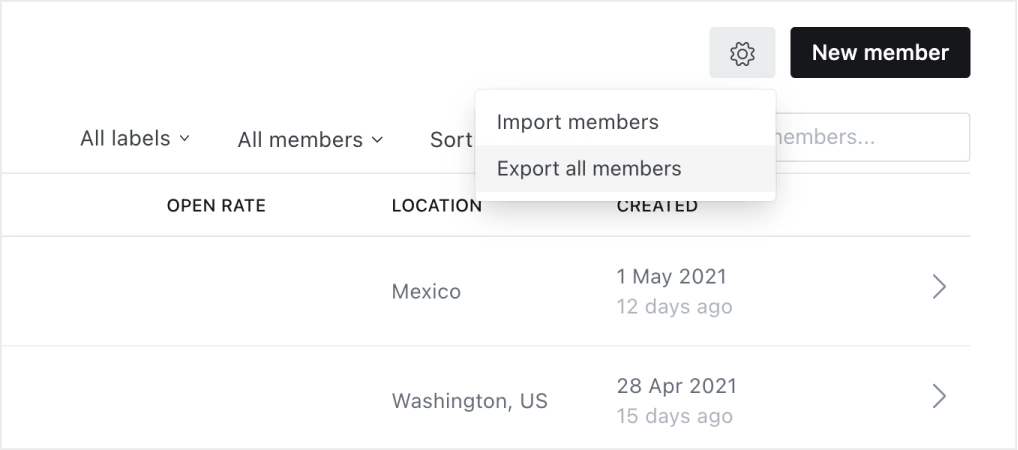
Export all members in one CSV file from the Members dashboard in Ghost Admin.
### Copy images, files and media
To download images and media, you’ll need shell access to your server. If you’re unable to gain shell access to your current web host, you may need to contact their support team.
When logged in to your server,`cd`to the`content`directory: `cd /var/www/ghost/content`
Then,`zip`the`images`and other file storage directories with their contents `zip -r content-files.zip images/ files/ media/`
Then, to move the zip files from your server onto your local machine. `scp user@123.456.789.123:/var/www/ghost/content/content-files.zip ~/Desktop/content-files.zip`
### Export members
Export all members in one CSV file from the Members dashboard in Ghost Admin.
 ***
## Restoring your data from a manual backup
### Restoring database and content backups
If you backed up your MySQL database and content folder, follow these steps to restore them:
**For Docker installations:**
```bash theme={"dark"}
# Stop Ghost
docker stop GHOST_CONTAINER_NAME
# Restore the database
docker exec -i MYSQL_CONTAINER_NAME mysql -u root -p ghost < ~/ghost-backups/ghost_backup.sql
# Restore the content folder
docker run --rm \
-v ghost_ghost_data:/ghost_content \
-v ~/ghost-backups:/backup \
alpine \
tar xzf /backup/ghost_content_backup.tar.gz -C /ghost_content
# Start Ghost
docker start GHOST_CONTAINER_NAME
```
**For standard Ghost CLI installations:**
```bash theme={"dark"}
# Stop Ghost
cd /var/www/ghost
ghost stop
# Restore the database
mysql -u ghost_user -p ghost_production < ~/ghost-backups/ghost_backup.sql
# Restore the content folder
cd /var/www/ghost
tar xzf ~/ghost-backups/ghost_content_backup.tar.gz
# Fix permissions
sudo chown -R ghost:ghost content
# Restart Ghost
ghost start
```
### Copy images, files and media
All images, files and media need to be copied over to your new install.
After doing that, run this command to fix permissions: `sudo chown -R ghost:ghost content`
Once this is complete, restart Ghost: `ghost restart`
### Import content
To begin the content migration, head to the**Labs**section of Ghost Admin and import the`ghost.json`backup which you exported earlier.
### Upload routes and redirects
From the Labs page, import the `routes.yaml` and `redirects.yaml` files that you previously downloaded for your backup data.
### Upload theme
Next, upload your theme in the**Design**settings page of Ghost Admin to get your site looking the same way it did before.
### Reconnect Stripe
*Skip this step if you’re not using Stripe for paid subscriptions.*
To import paid members, Ghost needs to be connected to Stripe in Live mode before you import your members.
Make sure to connect Ghost to **the same Stripe account** you were using on your old installation - learn more about how to connect a Stripe account in [this guide](https://ghost.org/help/setup-members/#connect-a-stripe-account).
### Import members
With Stripe connected, you can now import your members CSV file. You’ll receive an email notification when the import process has completed.
***
## Restoring your data from a manual backup
### Restoring database and content backups
If you backed up your MySQL database and content folder, follow these steps to restore them:
**For Docker installations:**
```bash theme={"dark"}
# Stop Ghost
docker stop GHOST_CONTAINER_NAME
# Restore the database
docker exec -i MYSQL_CONTAINER_NAME mysql -u root -p ghost < ~/ghost-backups/ghost_backup.sql
# Restore the content folder
docker run --rm \
-v ghost_ghost_data:/ghost_content \
-v ~/ghost-backups:/backup \
alpine \
tar xzf /backup/ghost_content_backup.tar.gz -C /ghost_content
# Start Ghost
docker start GHOST_CONTAINER_NAME
```
**For standard Ghost CLI installations:**
```bash theme={"dark"}
# Stop Ghost
cd /var/www/ghost
ghost stop
# Restore the database
mysql -u ghost_user -p ghost_production < ~/ghost-backups/ghost_backup.sql
# Restore the content folder
cd /var/www/ghost
tar xzf ~/ghost-backups/ghost_content_backup.tar.gz
# Fix permissions
sudo chown -R ghost:ghost content
# Restart Ghost
ghost start
```
### Copy images, files and media
All images, files and media need to be copied over to your new install.
After doing that, run this command to fix permissions: `sudo chown -R ghost:ghost content`
Once this is complete, restart Ghost: `ghost restart`
### Import content
To begin the content migration, head to the**Labs**section of Ghost Admin and import the`ghost.json`backup which you exported earlier.
### Upload routes and redirects
From the Labs page, import the `routes.yaml` and `redirects.yaml` files that you previously downloaded for your backup data.
### Upload theme
Next, upload your theme in the**Design**settings page of Ghost Admin to get your site looking the same way it did before.
### Reconnect Stripe
*Skip this step if you’re not using Stripe for paid subscriptions.*
To import paid members, Ghost needs to be connected to Stripe in Live mode before you import your members.
Make sure to connect Ghost to **the same Stripe account** you were using on your old installation - learn more about how to connect a Stripe account in [this guide](https://ghost.org/help/setup-members/#connect-a-stripe-account).
### Import members
With Stripe connected, you can now import your members CSV file. You’ll receive an email notification when the import process has completed.