> ## Documentation Index
> Fetch the complete documentation index at: https://docs.ghost.org/llms.txt
> Use this file to discover all available pages before exploring further.
# Configuration
> For self-hosted Ghost users, a custom configuration file can be used to override Ghost’s default behaviour. This provides you with a range of options to configure your publication to suit your needs.
***
## Overview
When you install Ghost using the supported and recommended method using `ghost-cli`, a custom configuration file is created for you by default. There are some configuration options which are required by default, and many optional configurations.
The three required options are `url` and `database` which are configured during setup, and `mail` which needs to be configured once you’ve installed Ghost.
This article explains how to setup your mail config, as well as walk you through all of the available config options.
## Custom configuration files
The configuration is managed by [nconf](https://github.com/indexzero/nconf/). A custom configuration file must be a valid JSON file located in the root folder and changes to the file can be implemented using `ghost restart`.
Since Node.js has the concept of environments built in, Ghost supports two environments: **development** and **production**. All public Ghost publications run in production mode, while development mode can be used to test or build on top of Ghost locally.
Check out the official install guides for [development](/install/local/) and [production](/install/ubuntu/).
The configuration files reflect the environment you are using:
* `config.development.json`
* `config.production.json`
#### Ghost in development
If you would like to start Ghost in development, you don’t have to specify any environment, because development is default. To test Ghost in production, you can use:
```bash theme={"dark"}
NODE_ENV=production node index.js
```
If you want to make changes when developing and working on Ghost, you can create a special configuration file that will be ignored in git:
* `config.local.json`
This file is merged on top of `config.development.json` so you can use both at the same time.
#### Debugging the configuration output
Start Ghost with:
```bash theme={"dark"}
DEBUG=ghost:*,ghost-config node index.js
```
#### Running Ghost with config env variables
> ALL configuration options are overridable with environment variables!
> Values set through env vars take priority over data in configuration files
Start Ghost using environment variables which match the name and case of each config option:
```bash theme={"dark"}
url=http://ghost.local:2368 node index.js
```
For nested config options, separate with two underscores:
```bash theme={"dark"}
database__connection__host=mysql node index.js
```
If you want to set a var of list type:
```bash theme={"dark"}
logging__transports='["stdout","file"]' node index.js
```
## Configuration options
There are a number of configuration options which are explained in detail in this article. Below is an index of all configuration options:
| Name | Required? | Description |
| ------------------- | ------------- | -------------------------------------------------------------------------------------------------------------------------------- |
| `url` | In production | Set the public URL for your blog |
| `database` | In production | Type of database used (default: MySQL) |
| `mail` | In production | Add a mail service |
| `admin` | Optional | Set the protocol and hostname for your admin panel |
| `server` | Optional | Host and port for Ghost to listen on |
| `privacy` | Optional | Disable features set in [privacy.md](https://github.com/TryGhost/Ghost/blob/2f09dd888024f143d28a0d81bede1b53a6db9557/PRIVACY.md) |
| `security` | Optional | Disable security features that are enabled by default |
| `paths` | Optional | Customise internal paths |
| `referrerPolicy` | Optional | Control the content attribute of the meta referrer tag |
| `useMinFiles` | Optional | Generate assets URL with .min notation |
| `storage` | Optional | Set a custom storage adapter |
| `scheduling` | Optional | Set a custom scheduling adapter |
| `logging` | Optional | Configure logging for Ghost |
| `spam` | Optional | Configure spam settings |
| `caching` | Optional | Configure HTTP caching settings |
| `compress` | Optional | Disable compression of server responses |
| `imageOptimization` | Optional | Configure image manipulation and processing |
| `opensea` | Optional | Increase rate limit for fetching NFT embeds from OpenSea.io |
| `tenor` | Optional | Enable integration with Tenor.com for embedding GIFs directly from the editor |
| `twitter` | Optional | Add support for rich Twitter embeds in newsletters |
| `portal` | Optional | Relocate or remove the scripts for Portal |
| `sodoSearch` | Optional | Relocate or remove the scripts for Sodo search |
| `comments` | Optional | Relocate or remove the scripts for comments |
### URL
*(Required in production)*
Once a Ghost publication is installed, the first thing to do is set a URL. When installing using `ghost-cli`, the install process requests the URL during the setup process.
Enter the URL that is used to access your publication. If using a subpath, enter the full path, `https://example.com/blog/`. If using SSL, always enter the URL with `https://`.
#### SSL
We always recommend using SSL to run your Ghost publication in production. Ghost has a number of configuration options for working with SSL, and securing the URLs for the admin `/ghost/` and the frontend of your publication. Without SSL your username and password are sent in plaintext.
`ghost-cli` prompts to set up SSL during the installation process. After a successful SSL setup, you can find your SSL certificate in `/etc/letsencrypt`.
If you see errors such as `access denied from url`, then the provided URL in your config file is incorrect and needs to be updated.
### Database
*(Required in production)*
Ghost is configured using MySQL by default:
```json theme={"dark"}
"database": {
"client": "mysql",
"connection": {
"host": "127.0.0.1",
"port": 3306,
"user": "your_database_user",
"password": "your_database_password",
"database": "your_database_name"
}
}
```
Alternatively, you can configure sqlite3:
```json theme={"dark"}
"database": {
"client": "sqlite3",
"connection": {
"filename": "content/data/ghost-test.db"
},
"useNullAsDefault": true,
"debug": false
}
```
#### Number of connections
It’s possible to limit the number of simultaneous connections using the pool setting. The default values are a minimum of 2 and a maximum of 10, which means Ghost always maintains two active database connections. You can set the minimum to 0 to prevent this:
```json theme={"dark"}
"database": {
"client": ...,
"connection": { ... },
"pool": {
"min": 2,
"max": 20
}
}
```
#### SSL
In a typical Ghost installation, the MySQL database will be on the same server as Ghost itself. With cloud computing and database-as-a-service providers you might want to enable SSL connections to the database.
For Amazon RDS you’ll need to configure the connection with `"ssl": "Amazon RDS"`:
```json theme={"dark"}
"database": {
"client": "mysql",
"connection": {
"host": "your_cloud_database",
"port": 3306,
"user": "your_database_user",
"password": "your_database_password",
"database": "your_database_name",
"ssl": "Amazon RDS"
}
}
```
For other hosts, you’ll need to output your CA certificate (not your CA private key) as a single line string including literal new line characters `\n` (you can get the single line string with `awk '{printf "%s\\n", $0}' CustomRootCA.crt`) and add it to the configuration:
```json theme={"dark"}
"database": {
"client": "mysql",
"connection": {
"host": "your_cloud_database",
"port": 3306,
"user": "your_database_user",
"password": "your_database_password",
"database": "your_database_name",
"ssl": {
"ca": "-----BEGIN CERTIFICATE-----\nMIIFY... truncated ...pq8fa/a\n-----END CERTIFICATE-----\n"
}
}
}
```
For a certificate chain, include all CA certificates in the single line string:
```json theme={"dark"}
"database": {
"client": "mysql",
"connection": {
"host": "your_cloud_database",
"port": 3306,
"user": "your_database_user",
"password": "your_database_password",
"database": "your_database_name",
"ssl": {
"ca": "-----BEGIN CERTIFICATE-----\nMIIFY... truncated ...pq8fa/a\n-----END CERTIFICATE-----\n-----BEGIN CERTIFICATE-----\nMIIFY... truncated ...wn8v90/a\n-----END CERTIFICATE-----\n"
}
}
}
```
### Mail
*(Required in production)*
The most important piece of configuration once the installation is complete is to set up mail. Configuring mail allows Ghost to send transactional emails such as user invitations, password resets, member signups, and member login links. With the help of a bulk email service, you can also configure Ghost to send newsletters to members.
Ghost uses [Nodemailer](https://github.com/nodemailer/nodemailer/) under the hood, and tries to use the direct mail service if available.
We recommend ensuring transactional emails are functional before moving on to bulk mail configuration.
#### Configuring with Mailgun
[Mailgun](https://www.mailgun.com/) is a service for sending emails and provides more than adequate resources to send bulk emails at a reasonable price. Find out more about [using Mailgun with Ghost here](/faq/mailgun-newsletters/).
Mailgun allows you to use your own domain for sending transactional emails. Otherwise, you can use a subdomain that Mailgun provides you with (also known as the sandbox domain, limited to 300 emails per day). You can change this at any time.
Mailgun is an optional service for sending transactional emails, but it is required for bulk mail — [read more](/faq/mailgun-newsletters/).
#### Create a Mailgun account
Once your site is fully set up [create a Mailgun account](https://signup.mailgun.com/). After your account is verified navigate to **Domain settings** under **Sending** in the Mailgun admin. There you’ll find your SMTP credentials.
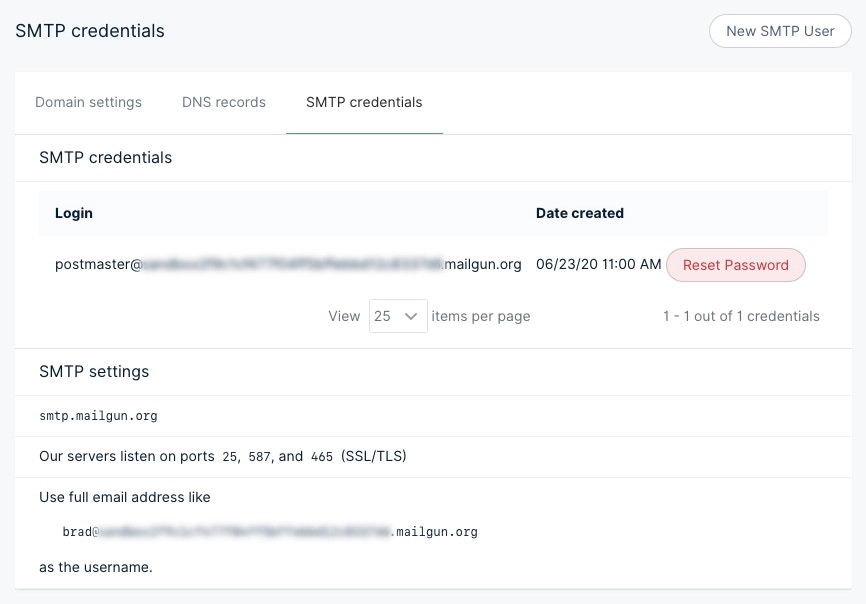 In addition to this information, you’ll need the password, which can be obtained by clicking the **Reset Password** button. Keep these details for future reference.
Mailgun provides options for using their own subdomains for sending emails, as well as custom domains for a [competitive price](/faq/mailgun-newsletters/#did-you-know-mailgun-doesn-t-have-free-accounts-anymore).
#### Add credentials to `config.production.json`
Open your production config file in any code editor and add the following mail configuration, making sure to update the values to the same credentials shown in your own Mailgun SMTP settings:
```json theme={"dark"}
// config.production.json
"mail": {
"transport": "SMTP",
"options": {
"service": "Mailgun",
"auth": {
"user": "postmaster@example.mailgun.org",
"pass": "1234567890"
}
}
},
```
Once you are finished, hit save and then run `ghost restart` for your changes to take effect. These same credentials can be used for development environments, by adding them to the `config.development.json` file.
Mailgun provides a sandbox mode, which restricts emails to authorized recipients. Once sandbox mode is enabled, add and verify the email addresses you want to send emails to prior to testing.
#### Secure connection
Depending on your Mailgun settings you may want to force a secure SMTP connection. Update your `config.production.json` with the following for a secure connection:
```json theme={"dark"}
// config.production.json
"mail": {
"transport": "SMTP",
"options": {
"service": "Mailgun",
"host": "smtp.mailgun.org",
"port": 465,
"secure": true,
"auth": {
"user": "postmaster@example.mailgun.org",
"pass": "1234567890"
}
}
},
```
As always, hit save and run `ghost restart` for your changes to take effect.
#### Amazon SES
It’s also possible to use [Amazon Simple Email Service](https://aws.amazon.com/ses/). Use the SMTP username and password given when signing up and configure your `config.[env].json` file as follows:
```json theme={"dark"}
"mail": {
"transport": "SMTP",
"options": {
"host": "YOUR-SES-SERVER-NAME",
"port": 465,
"service": "SES",
"auth": {
"user": "YOUR-SES-SMTP-ACCESS-KEY-ID",
"pass": "YOUR-SES-SMTP-SECRET-ACCESS-KEY"
}
}
}
```
#### Email addresses
**Default email address**
Ghost uses the value set in `mail.from` as the default email address:
```json theme={"dark"}
"mail": {
"from": "support@example.com",
}
```
A custom name can also optionally be provided:
```json theme={"dark"}
"mail": {
"from": "'Acme Support' ",
}
```
Try to use a real, working email address - as this greatly improves delivery rates for important emails sent by Ghost (Like password reset requests and user invitations). If you have a company support email address, this is a good place to use it.
**Support email address**
When setting a custom support email address via **Settings** → **Portal settings** → **Account page**, you override the default email address for member communications like sign-in/sign-up emails and member notifications.
**Newsletter addresses**
It’s also possible to set a separate sender and reply-to address per newsletter, which will be used instead of the default. Configure these addresses via **Settings** → **Newsletters**.
The table below shows which email is used based on email type. In the table, if an address is not, it falls back to the next available address until reaching the default.
| Email type | Address used | Examples |
| -------------------- | ------------------- | ---------------------------------- |
| Member notifications | Support, Default | Signup/sign links, comment replies |
| Newsletters | Newsletter, Default | Configurable per newsletter |
| Staff notifications | Default | Recommendations, signups |
Irrespective of how you configure email addresses, maximize deliverability by ensuring DKIM, SPF, and DMARC records are configured for your sending domains.
### Admin URL
Admin can be used to specify a different protocol for your admin panel or a different hostname (domain name). It can’t affect the path at which the admin panel is served (this is always /ghost/).
```json theme={"dark"}
"admin": {
"url": "http://example.com"
}
```
### Server
The server host and port are the IP address and port number that Ghost listens on for requests. By default, requests are routed from port 80 to Ghost by nginx (recommended), or Apache.
```json theme={"dark"}
"server": {
"host": "127.0.0.1",
"port": 2368
}
```
### Privacy
All features inside the privacy.md file are enabled by default. It is possible to turn these off in order to protect privacy:
* Update check
* Gravatar
* Structured data
For more information about the features, read the [privacy.md page](https://github.com/TryGhost/Ghost/blob/2f09dd888024f143d28a0d81bede1b53a6db9557/PRIVACY.md).
To turn off **all** of the features, use:
```json theme={"dark"}
"privacy": {
"useTinfoil": true
}
```
Alternatively, configure each feature individually:
```json theme={"dark"}
"privacy": {
"useUpdateCheck": false,
"useGravatar": false,
"useStructuredData": false
}
```
### Security
By default Ghost will email an auth code when it detects a login from a new device. To disable this feature, use:
```json theme={"dark"}
"security": {
"staffDeviceVerification": false
}
```
Note: if you want to force 2FA for all staff logins, not just new devices, you can do so under the Settings > Staff in the admin panel
### Paths
The configuration of paths can be relative or absolute. To use a content directory that does not live inside the Ghost folder, specify a paths object with a new contentPath:
```json theme={"dark"}
"paths": {
"contentPath": "content/"
},
```
When using a custom content path, the content directory must exist and contain subdirectories for data, images, themes, logs, and adapters.
If using a SQLite database, you’ll also need to update the path to your database to match the new location of the data folder.
### Referrer Policy
Set the value of the content attribute of the meta referrer HTML tag by adding referrerPolicy to your config. `origin-when-crossorigin` is the default. Read through all possible [options](https://www.w3.org/TR/referrer-policy/#referrer-policies/).
## Adapters
Ghost allows for customizations at multiple layers through an adapter system. Customizable layers include: `storage`, `caching`, `sso`, and `scheduling`.
Use the `adapters` configuration block with “storage”, “caching”, “sso,” or “scheduling” keys to initialize a custom adapter. For example, the following configuration uses `storage-module-name` to handle all `storage` capabilities in Ghost. Note that the `active` key indicates a default adapter used for all features if no other adapters are declared.
```json theme={"dark"}
"adapters": {
"storage": {
"active": "storage-module-name",
"storage-module-name": {
"key": "value"
}
}
}
```
Customize parts of Ghost’s features by declaring adapters at the feature level. For example, to use a custom `cache` adapter only for the `imageSizes` feature, configure the cache adapter as follows:
```json theme={"dark"}
"adapters": {
"cache": {
"custom-redis-cache-adapter": {
"host": "localhost",
"port": 6379,
"password": "secret_password"
},
"imageSizes": {
"adapter": "custom-redis-cache-adapter",
"ttl": 3600
}
}
}
```
The above declaration uses the `custom-redis-cache-adapter` only for the `imageSizes` cache feature with these values:
```json theme={"dark"}
{
"host": "localhost",
"port": 6379,
"password": "secret_password",
"ttl": 3600
}
```
### Storage adapters
The storage layer is used to store images uploaded from the Ghost Admin UI, API, or when images are included in a zip file uploaded via the importer. Using a custom storage module allows you to change where images are stored without changing Ghost core.
By default, Ghost stores uploaded images in the file system. The default location is the Ghost content path in your Ghost folder under `content/images` or an alternative custom content path that’s been configured.
To use a custom storage adapter, your custom configuration file needs to be updated to provide configuration for your new storage module and set it as active:
```json theme={"dark"}
"storage": {
"active": "my-module",
"my-module": {
"key": "abcdef"
}
}
```
The storage block should have 2 items:
* An active key, which contains the name\* of your module
* A key that reflects the name\* of your module, containing any config your module needs
#### Available storage features
* `images` - storage of image files uploaded through `POST '/images/upload'` endpoint
* `media` - storage of media files uploaded through `POST '/media/upload'` and `POST/media/thumbnail/upload` endpoints
* `files` - storage of generic files uploaded through `POST '/files/upload'` endpoint
#### Available custom storage adapters
* [local-file-store](https://github.com/TryGhost/Ghost/blob/fa1861aad3ba4e5e1797cec346f775c5931ca856/ghost/core/core/server/adapters/storage/LocalFilesStorage.js) (default) saves images to the local filesystem
* [http-store](https://gist.github.com/ErisDS/559e11bf3e84b89a9594) passes image requests through to an HTTP endpoint
* [s3-store](https://github.com/spanishdict/ghost-s3-compat) saves to Amazon S3 and proxies requests to S3
* [s3-store](https://github.com/colinmeinke/ghost-storage-adapter-s3) saves to Amazon S3 and works with 0.10+
* [qn-store](https://github.com/Minwe/qn-store) saves to Qiniu
* [ghost-cloudinary-store](https://github.com/mmornati/ghost-cloudinary-store) saves to Cloudinary
* [ghost-storage-cloudinary](https://github.com/eexit/ghost-storage-cloudinary) saves to Cloudinary with RetinaJS support
* [upyun-ghost-store](https://github.com/sanddudu/upyun-ghost-store) saves to Upyun
* [ghost-upyun-store](https://github.com/pupboss/ghost-upyun-store) saves to Upyun
* [ghost-google-drive](https://github.com/robincsamuel/ghost-google-drive) saves to Google Drive
* [ghost-azure-storage](https://github.com/tparnell8/ghost-azurestorage) saves to Azure Storage
* [ghost-imgur](https://github.com/wrenth04/ghost-imgur) saves to Imgur
* [google-cloud-storage](https://github.com/thombuchi/ghost-google-cloud-storage) saves to Google Cloud Storage
* [ghost-oss-store](https://github.com/MT-Libraries/ghost-oss-store) saves to Aliyun OSS
* [ghost-b2](https://github.com/martiendt/ghost-storage-adapter-b2) saves to Backblaze B2
* [ghost-github](https://github.com/ifvictr/ghost-github) saves to GitHub
* [pages-store](https://github.com/zce/pages-store) saves to GitHub Pages or other pages service, e.g. Coding Pages
* [WebDAV Storage](https://github.com/bartt/ghost-webdav-storage-adapter) saves to a WebDAV server.
* [ghost-qcloud-cos](https://github.com/ZhelinCheng/ghost-qcloud-cos) saves to Tencent Cloud COS.
* [ghost-bunny-cdn-storage](https://github.com/betschki/ghost-bunny-cdn-storage/) saves to BunnyCDN.
#### Creating a custom storage adapter
To replace the storage module with a custom solution, use the requirements detailed below. You can also take a look at our [default local storage implementation](https://github.com/TryGhost/Ghost/blob/fa1861aad3ba4e5e1797cec346f775c5931ca856/ghost/core/core/server/adapters/storage/LocalFilesStorage.js).
**Location**
1. Create a new folder named `storage` inside `content/adapters`
2. Inside of `content/adapters/storage`, create a file or a folder: `content/adapters/storage/my-module.js` or `content/adapters/storage/my-module` — if using a folder, create a file called `index.js` inside it.
**Base adapter class inheritance**
A custom storage adapter must inherit from the base storage adapter. By default, the base storage adapter is installed by Ghost and available in your custom adapter.
```js theme={"dark"}
const BaseAdapter = require('ghost-storage-base');
class MyCustomAdapter extends BaseAdapter{
constructor() {
super();
}
}
module.exports = MyCustomAdapter;
```
**Required methods**
Your custom storage adapter must implement five required functions:
* `save` - The `.save()` method stores the image and returns a promise which resolves the path from which the image should be requested in future.
* `exists` - Used by the base storage adapter to check whether a file exists or not
* `serve` - Ghost calls `.serve()` as part of its middleware stack, and mounts the returned function as the middleware for serving images
* `delete`
* `read`
```js theme={"dark"}
const BaseAdapter = require('ghost-storage-base');
class MyCustomAdapter extends BaseAdapter{
constructor() {
super();
}
exists() {
}
save() {
}
serve() {
return function customServe(req, res, next) {
next();
}
}
delete() {
}
read() {
}
}
module.exports = MyCustomAdapter;
```
### Cache adapters
The cache layer is used for storing data that needs to be quickly accessible in a format requiring no additional processing. For example, the “imageSizes” cache stores images generated at different sizes based on the fetched URL. This request is a relatively expensive operation, which would otherwise slow down the response time of the Ghost server. Having calculated image sizes cached per image URL makes the image size lookup almost instant with only a little overhead on the initial image fetch.
By default, Ghost keeps caches in memory. The upsides of this approach are:
* no need for external dependencies
* very fast access to data
The downsides are:
* Having no persistence between Ghost restarts — cache has to be repopulated on every restart
* RAM is a limited resource that can be depleted by too many cached values
With custom cache adapters, like Redis storage, the cache can expand its size independently of the server’s system memory and persist its values between Ghost restarts.
#### Ghost’s built-in Redis cache adapter
Ghost’s built-in Redis cache adapter solves the downsides named above by persisting across Ghost restarts and not being limited by the Ghost instance’s RAM capacity. [Implementing a Redis cache](https://redis.io/docs/getting-started/installation/) is a good solution for sites with high load and complicated templates, ones using lots of `get` helpers. Note that this adapter requires Redis to be set up and running in addition to Ghost.
To use the Redis cache adapter, change the value for the cache adapter from “Memory” to “Redis” in the site’s configuration file. In the following example, image sizes and the tags Content API endpoint are cached in Redis for optimized performance.
```json theme={"dark"}
"adapters": {
"cache": {
"imageSizes": {
"adapter": "Redis",
"ttl": 3600,
"keyPrefix": "image-sizes:"
}
}
},
```
Note that the `ttl` value is in seconds.
#### Custom cache adapters
To use a custom cache adapter, update your custom configuration file. At the moment, only the `imageSizes` feature supports full customization. Configuration is as follows:
```json theme={"dark"}
"cache": {
"imageSizes": "my-cache-module",
"my-cache-module": {
"key": "cache_module_value"
}
}
```
The `cache` block should have 2 items:
* A feature key, `"imageSizes"`, which contains the name of your custom caching module
* A `key` that reflects the name of your caching module, containing any config your module needs
#### Creating a custom cache adapter
To replace the caching module, use the requirements below. You can also take a look at our [default in-memory caching implementation](https://github.com/TryGhost/Ghost/blob/eb6534bd7fd905b9f402c1f446c87bff455b6f17/ghost/core/core/server/adapters/cache/Memory.js).
#### Location
1. Create a new folder named `cache` inside `content/adapters`
2. Inside of `content/adapters/cache`, create a file or a folder: `content/adapters/cache/my-cache-module.js` or `content/adapters/cache/my-cache-module` - if using a folder, create a file called `index.js` inside it.
#### Base cache adapter class inheritance
A custom cache adapter must inherit from the base cache adapter. By default the base cache adapter is installed by Ghost and available in your custom adapter.
```js theme={"dark"}
const BaseCacheAdapter = require('@tryghost/adapter-base-cache');
class MyCustomCacheAdapter extends BaseCacheAdapter{
constructor() {
super();
}
}
module.exports = MyCustomCacheAdapter;
```
#### Required methods
Your custom cache adapter must implement the following required functions:
* `get` - fetches the stored value based on the key value (`.get('some_key')`). It’s an async method - the implementation returns a `Promise` that resolves with the stored value.
* `set` - sets the value in the underlying cache based on key and value parameters. It’s an async method - the implementation returns a `Promise` that resolves once the value is stored.
* `keys` - fetches all keys present in the cache. It’s an async method — the implementation returns a `Promise` that resolves with an array of strings.
* `reset` - clears the cache. This method is not meant to be used in production code - it’s here for test suite purposes *only*.
```js theme={"dark"}
const BaseCacheAdapter = require('@tryghost/adapter-base-cache');
class MyCustomCacheAdapter extends BaseCacheAdapter {
constructor(config) {
super();
}
/**
* @param {String} key
*/
async get(key) {
}
/**
* @param {String} key
* @param {*} value
*/
async set(key, value) {
}
/**
* @returns {Promise>} all keys present in the cache
*/
async keys() {
}
/**
* @returns {Promise<*>} clears the cache. Not meant for production
*/
async reset() {
}
}
module.exports = MyCustomCacheAdapter;
```
### Logging
Configure how Ghost should log, for example:
```json theme={"dark"}
"logging": {
"path": "something/",
"useLocalTime": true,
"level": "info",
"rotation": {
"enabled": true,
"count": 15,
"period": "1d"
},
"transports": ["stdout", "file"]
}
```
#### `level`
The default log level is `info` which prints all info, warning and error logs. Set it to `error` to only print errors.
#### `rotation`
Tell Ghost to rotate your log files. By default Ghost keeps 10 log files and rotates every day. Rotation is enabled by default in production and disabled in development.
#### `transports`
Define where Ghost should log to. By default Ghost writes to stdout and into file for production, and to stdout only for development.
#### `path`
Log your content path, e.g. `content/logs/`. Set any path but ensure the permissions are correct to write into this folder.
#### `useLocalTime`
Configure log timestamps to use the local timezone. Defaults to `false`.
### Spam
Tell Ghost how to treat [spam requests](https://github.com/TryGhost/Ghost/blob/ff61b330491b594997b5b156215417b5d7687743/ghost/core/core/shared/config/defaults.json#L64).
### Caching
Configure [HTTP caching](https://developer.mozilla.org/en-US/docs/Web/HTTP/Caching) for HTTP responses served from Ghost.
`caching` configuration is available for responses containing `public` value in `Cache-Control` header. Each key under `caching` section contains `maxAge` property that controls the `max-age` value in `Cache-Control` header. For example, the following configuration:
```json theme={"dark"}
"caching": {
"contentAPI": {
"maxAge": 10
}
}
```
Adds `Cache-Control: public, max-age=10` header with all Content API responses, which might be useful to set for high-volume sites where content does not change often.
The following configuration keys are available with default `maxAge` values:
* “frontend” - with `"maxAge": 0`, controls responses coming from public Ghost pages (like the homepage)
* “contentAPI” - with `"maxAge": 0`, controls responses coming from [Content API](/content-api/)
* “robotstxt” - with `"maxAge": 3600`, controls responses for `robots.txt` [files](/themes/structure/#robotstxt)
* “sitemap” - with `"maxAge": 3600`, controls responses for `sitemap.xml` [files](https://ghost.org/changelog/xml-sitemaps/)
* “sitemapXSL” - with `"maxAge": 86400`, controls responses for `sitemap.xsl` files
* “wellKnown” - with `"maxAge": 86400`, controls responses coming from `*/.wellknown/*` endpoints
* “cors” - with `"maxAge": 86400`, controls responses for `OPTIONS` [CORS](https://developer.mozilla.org/en-US/docs/Web/HTTP/CORS) requests
* “publicAssets” - with `"maxAge": 31536000`, controls responses for public assets like `public/ghost.css`, `public/cards.min.js`, etc.
* “301” - with `"maxAge": 31536000`, controls 301 redirect responses
* “customRedirects” - with `"maxAge": 31536000`, controls redirects coming from [custom redirects](/themes/routing/#redirects)
### Compress
The compression flag is turned on by default using `"compress": true`. Alternatively, you can turn it off with `"compress": false`.
### Image optimization
When uploading images into the Ghost editor, they are automatically processed and compressed by default. This can be disabled in your `config.[env].json` file using:
```json theme={"dark"}
"imageOptimization": {
"resize": false
}
```
Image compression details:
* Resize the image to 2000px max width
* JPEGs are compressed to 80% quality.
* Metadata is removed
The original image is kept with the suffix `_o`.
### OpenSea
When creating NFT embeds, Ghost fetches the information from the [OpenSea](https://opensea.io) API. This API is rate limited, and OpenSea request that you use an API key in production environments.
You can [request an OpenSea API key](https://docs.opensea.io/reference/api-keys) from them directly, without needing an account.
```json theme={"dark"}
"opensea": {
"privateReadOnlyApiKey": "..."
}
```
### Tenor
To enable searching for GIFs directly in the editor, provide an API key for [Tenor](https://tenor.com).
You can [request a Tenor API key](https://developers.google.com/tenor/guides/quickstart) from Google’s cloud console, for free.
```json theme={"dark"}
"tenor": {
"googleApiKey": "..."
}
```
### Twitter
In order to display Twitter cards in newsletter emails, Ghost needs to be able to fetch data from the Twitter API and requires a Bearer Token to do so.
You can [request Twitter API access](https://developer.twitter.com) from them via their developer portal.
```json theme={"dark"}
"twitter": {
"privateReadOnlyToken": "..."
}
```
### Pintura
[Pintura](https://pqina.nl/pintura/) is an image editor that integrates with Ghost. After purchasing a license, upload the JS and CSS files via **Integrations** → **Pintura**.
In addition to this information, you’ll need the password, which can be obtained by clicking the **Reset Password** button. Keep these details for future reference.
Mailgun provides options for using their own subdomains for sending emails, as well as custom domains for a [competitive price](/faq/mailgun-newsletters/#did-you-know-mailgun-doesn-t-have-free-accounts-anymore).
#### Add credentials to `config.production.json`
Open your production config file in any code editor and add the following mail configuration, making sure to update the values to the same credentials shown in your own Mailgun SMTP settings:
```json theme={"dark"}
// config.production.json
"mail": {
"transport": "SMTP",
"options": {
"service": "Mailgun",
"auth": {
"user": "postmaster@example.mailgun.org",
"pass": "1234567890"
}
}
},
```
Once you are finished, hit save and then run `ghost restart` for your changes to take effect. These same credentials can be used for development environments, by adding them to the `config.development.json` file.
Mailgun provides a sandbox mode, which restricts emails to authorized recipients. Once sandbox mode is enabled, add and verify the email addresses you want to send emails to prior to testing.
#### Secure connection
Depending on your Mailgun settings you may want to force a secure SMTP connection. Update your `config.production.json` with the following for a secure connection:
```json theme={"dark"}
// config.production.json
"mail": {
"transport": "SMTP",
"options": {
"service": "Mailgun",
"host": "smtp.mailgun.org",
"port": 465,
"secure": true,
"auth": {
"user": "postmaster@example.mailgun.org",
"pass": "1234567890"
}
}
},
```
As always, hit save and run `ghost restart` for your changes to take effect.
#### Amazon SES
It’s also possible to use [Amazon Simple Email Service](https://aws.amazon.com/ses/). Use the SMTP username and password given when signing up and configure your `config.[env].json` file as follows:
```json theme={"dark"}
"mail": {
"transport": "SMTP",
"options": {
"host": "YOUR-SES-SERVER-NAME",
"port": 465,
"service": "SES",
"auth": {
"user": "YOUR-SES-SMTP-ACCESS-KEY-ID",
"pass": "YOUR-SES-SMTP-SECRET-ACCESS-KEY"
}
}
}
```
#### Email addresses
**Default email address**
Ghost uses the value set in `mail.from` as the default email address:
```json theme={"dark"}
"mail": {
"from": "support@example.com",
}
```
A custom name can also optionally be provided:
```json theme={"dark"}
"mail": {
"from": "'Acme Support' ",
}
```
Try to use a real, working email address - as this greatly improves delivery rates for important emails sent by Ghost (Like password reset requests and user invitations). If you have a company support email address, this is a good place to use it.
**Support email address**
When setting a custom support email address via **Settings** → **Portal settings** → **Account page**, you override the default email address for member communications like sign-in/sign-up emails and member notifications.
**Newsletter addresses**
It’s also possible to set a separate sender and reply-to address per newsletter, which will be used instead of the default. Configure these addresses via **Settings** → **Newsletters**.
The table below shows which email is used based on email type. In the table, if an address is not, it falls back to the next available address until reaching the default.
| Email type | Address used | Examples |
| -------------------- | ------------------- | ---------------------------------- |
| Member notifications | Support, Default | Signup/sign links, comment replies |
| Newsletters | Newsletter, Default | Configurable per newsletter |
| Staff notifications | Default | Recommendations, signups |
Irrespective of how you configure email addresses, maximize deliverability by ensuring DKIM, SPF, and DMARC records are configured for your sending domains.
### Admin URL
Admin can be used to specify a different protocol for your admin panel or a different hostname (domain name). It can’t affect the path at which the admin panel is served (this is always /ghost/).
```json theme={"dark"}
"admin": {
"url": "http://example.com"
}
```
### Server
The server host and port are the IP address and port number that Ghost listens on for requests. By default, requests are routed from port 80 to Ghost by nginx (recommended), or Apache.
```json theme={"dark"}
"server": {
"host": "127.0.0.1",
"port": 2368
}
```
### Privacy
All features inside the privacy.md file are enabled by default. It is possible to turn these off in order to protect privacy:
* Update check
* Gravatar
* Structured data
For more information about the features, read the [privacy.md page](https://github.com/TryGhost/Ghost/blob/2f09dd888024f143d28a0d81bede1b53a6db9557/PRIVACY.md).
To turn off **all** of the features, use:
```json theme={"dark"}
"privacy": {
"useTinfoil": true
}
```
Alternatively, configure each feature individually:
```json theme={"dark"}
"privacy": {
"useUpdateCheck": false,
"useGravatar": false,
"useStructuredData": false
}
```
### Security
By default Ghost will email an auth code when it detects a login from a new device. To disable this feature, use:
```json theme={"dark"}
"security": {
"staffDeviceVerification": false
}
```
Note: if you want to force 2FA for all staff logins, not just new devices, you can do so under the Settings > Staff in the admin panel
### Paths
The configuration of paths can be relative or absolute. To use a content directory that does not live inside the Ghost folder, specify a paths object with a new contentPath:
```json theme={"dark"}
"paths": {
"contentPath": "content/"
},
```
When using a custom content path, the content directory must exist and contain subdirectories for data, images, themes, logs, and adapters.
If using a SQLite database, you’ll also need to update the path to your database to match the new location of the data folder.
### Referrer Policy
Set the value of the content attribute of the meta referrer HTML tag by adding referrerPolicy to your config. `origin-when-crossorigin` is the default. Read through all possible [options](https://www.w3.org/TR/referrer-policy/#referrer-policies/).
## Adapters
Ghost allows for customizations at multiple layers through an adapter system. Customizable layers include: `storage`, `caching`, `sso`, and `scheduling`.
Use the `adapters` configuration block with “storage”, “caching”, “sso,” or “scheduling” keys to initialize a custom adapter. For example, the following configuration uses `storage-module-name` to handle all `storage` capabilities in Ghost. Note that the `active` key indicates a default adapter used for all features if no other adapters are declared.
```json theme={"dark"}
"adapters": {
"storage": {
"active": "storage-module-name",
"storage-module-name": {
"key": "value"
}
}
}
```
Customize parts of Ghost’s features by declaring adapters at the feature level. For example, to use a custom `cache` adapter only for the `imageSizes` feature, configure the cache adapter as follows:
```json theme={"dark"}
"adapters": {
"cache": {
"custom-redis-cache-adapter": {
"host": "localhost",
"port": 6379,
"password": "secret_password"
},
"imageSizes": {
"adapter": "custom-redis-cache-adapter",
"ttl": 3600
}
}
}
```
The above declaration uses the `custom-redis-cache-adapter` only for the `imageSizes` cache feature with these values:
```json theme={"dark"}
{
"host": "localhost",
"port": 6379,
"password": "secret_password",
"ttl": 3600
}
```
### Storage adapters
The storage layer is used to store images uploaded from the Ghost Admin UI, API, or when images are included in a zip file uploaded via the importer. Using a custom storage module allows you to change where images are stored without changing Ghost core.
By default, Ghost stores uploaded images in the file system. The default location is the Ghost content path in your Ghost folder under `content/images` or an alternative custom content path that’s been configured.
To use a custom storage adapter, your custom configuration file needs to be updated to provide configuration for your new storage module and set it as active:
```json theme={"dark"}
"storage": {
"active": "my-module",
"my-module": {
"key": "abcdef"
}
}
```
The storage block should have 2 items:
* An active key, which contains the name\* of your module
* A key that reflects the name\* of your module, containing any config your module needs
#### Available storage features
* `images` - storage of image files uploaded through `POST '/images/upload'` endpoint
* `media` - storage of media files uploaded through `POST '/media/upload'` and `POST/media/thumbnail/upload` endpoints
* `files` - storage of generic files uploaded through `POST '/files/upload'` endpoint
#### Available custom storage adapters
* [local-file-store](https://github.com/TryGhost/Ghost/blob/fa1861aad3ba4e5e1797cec346f775c5931ca856/ghost/core/core/server/adapters/storage/LocalFilesStorage.js) (default) saves images to the local filesystem
* [http-store](https://gist.github.com/ErisDS/559e11bf3e84b89a9594) passes image requests through to an HTTP endpoint
* [s3-store](https://github.com/spanishdict/ghost-s3-compat) saves to Amazon S3 and proxies requests to S3
* [s3-store](https://github.com/colinmeinke/ghost-storage-adapter-s3) saves to Amazon S3 and works with 0.10+
* [qn-store](https://github.com/Minwe/qn-store) saves to Qiniu
* [ghost-cloudinary-store](https://github.com/mmornati/ghost-cloudinary-store) saves to Cloudinary
* [ghost-storage-cloudinary](https://github.com/eexit/ghost-storage-cloudinary) saves to Cloudinary with RetinaJS support
* [upyun-ghost-store](https://github.com/sanddudu/upyun-ghost-store) saves to Upyun
* [ghost-upyun-store](https://github.com/pupboss/ghost-upyun-store) saves to Upyun
* [ghost-google-drive](https://github.com/robincsamuel/ghost-google-drive) saves to Google Drive
* [ghost-azure-storage](https://github.com/tparnell8/ghost-azurestorage) saves to Azure Storage
* [ghost-imgur](https://github.com/wrenth04/ghost-imgur) saves to Imgur
* [google-cloud-storage](https://github.com/thombuchi/ghost-google-cloud-storage) saves to Google Cloud Storage
* [ghost-oss-store](https://github.com/MT-Libraries/ghost-oss-store) saves to Aliyun OSS
* [ghost-b2](https://github.com/martiendt/ghost-storage-adapter-b2) saves to Backblaze B2
* [ghost-github](https://github.com/ifvictr/ghost-github) saves to GitHub
* [pages-store](https://github.com/zce/pages-store) saves to GitHub Pages or other pages service, e.g. Coding Pages
* [WebDAV Storage](https://github.com/bartt/ghost-webdav-storage-adapter) saves to a WebDAV server.
* [ghost-qcloud-cos](https://github.com/ZhelinCheng/ghost-qcloud-cos) saves to Tencent Cloud COS.
* [ghost-bunny-cdn-storage](https://github.com/betschki/ghost-bunny-cdn-storage/) saves to BunnyCDN.
#### Creating a custom storage adapter
To replace the storage module with a custom solution, use the requirements detailed below. You can also take a look at our [default local storage implementation](https://github.com/TryGhost/Ghost/blob/fa1861aad3ba4e5e1797cec346f775c5931ca856/ghost/core/core/server/adapters/storage/LocalFilesStorage.js).
**Location**
1. Create a new folder named `storage` inside `content/adapters`
2. Inside of `content/adapters/storage`, create a file or a folder: `content/adapters/storage/my-module.js` or `content/adapters/storage/my-module` — if using a folder, create a file called `index.js` inside it.
**Base adapter class inheritance**
A custom storage adapter must inherit from the base storage adapter. By default, the base storage adapter is installed by Ghost and available in your custom adapter.
```js theme={"dark"}
const BaseAdapter = require('ghost-storage-base');
class MyCustomAdapter extends BaseAdapter{
constructor() {
super();
}
}
module.exports = MyCustomAdapter;
```
**Required methods**
Your custom storage adapter must implement five required functions:
* `save` - The `.save()` method stores the image and returns a promise which resolves the path from which the image should be requested in future.
* `exists` - Used by the base storage adapter to check whether a file exists or not
* `serve` - Ghost calls `.serve()` as part of its middleware stack, and mounts the returned function as the middleware for serving images
* `delete`
* `read`
```js theme={"dark"}
const BaseAdapter = require('ghost-storage-base');
class MyCustomAdapter extends BaseAdapter{
constructor() {
super();
}
exists() {
}
save() {
}
serve() {
return function customServe(req, res, next) {
next();
}
}
delete() {
}
read() {
}
}
module.exports = MyCustomAdapter;
```
### Cache adapters
The cache layer is used for storing data that needs to be quickly accessible in a format requiring no additional processing. For example, the “imageSizes” cache stores images generated at different sizes based on the fetched URL. This request is a relatively expensive operation, which would otherwise slow down the response time of the Ghost server. Having calculated image sizes cached per image URL makes the image size lookup almost instant with only a little overhead on the initial image fetch.
By default, Ghost keeps caches in memory. The upsides of this approach are:
* no need for external dependencies
* very fast access to data
The downsides are:
* Having no persistence between Ghost restarts — cache has to be repopulated on every restart
* RAM is a limited resource that can be depleted by too many cached values
With custom cache adapters, like Redis storage, the cache can expand its size independently of the server’s system memory and persist its values between Ghost restarts.
#### Ghost’s built-in Redis cache adapter
Ghost’s built-in Redis cache adapter solves the downsides named above by persisting across Ghost restarts and not being limited by the Ghost instance’s RAM capacity. [Implementing a Redis cache](https://redis.io/docs/getting-started/installation/) is a good solution for sites with high load and complicated templates, ones using lots of `get` helpers. Note that this adapter requires Redis to be set up and running in addition to Ghost.
To use the Redis cache adapter, change the value for the cache adapter from “Memory” to “Redis” in the site’s configuration file. In the following example, image sizes and the tags Content API endpoint are cached in Redis for optimized performance.
```json theme={"dark"}
"adapters": {
"cache": {
"imageSizes": {
"adapter": "Redis",
"ttl": 3600,
"keyPrefix": "image-sizes:"
}
}
},
```
Note that the `ttl` value is in seconds.
#### Custom cache adapters
To use a custom cache adapter, update your custom configuration file. At the moment, only the `imageSizes` feature supports full customization. Configuration is as follows:
```json theme={"dark"}
"cache": {
"imageSizes": "my-cache-module",
"my-cache-module": {
"key": "cache_module_value"
}
}
```
The `cache` block should have 2 items:
* A feature key, `"imageSizes"`, which contains the name of your custom caching module
* A `key` that reflects the name of your caching module, containing any config your module needs
#### Creating a custom cache adapter
To replace the caching module, use the requirements below. You can also take a look at our [default in-memory caching implementation](https://github.com/TryGhost/Ghost/blob/eb6534bd7fd905b9f402c1f446c87bff455b6f17/ghost/core/core/server/adapters/cache/Memory.js).
#### Location
1. Create a new folder named `cache` inside `content/adapters`
2. Inside of `content/adapters/cache`, create a file or a folder: `content/adapters/cache/my-cache-module.js` or `content/adapters/cache/my-cache-module` - if using a folder, create a file called `index.js` inside it.
#### Base cache adapter class inheritance
A custom cache adapter must inherit from the base cache adapter. By default the base cache adapter is installed by Ghost and available in your custom adapter.
```js theme={"dark"}
const BaseCacheAdapter = require('@tryghost/adapter-base-cache');
class MyCustomCacheAdapter extends BaseCacheAdapter{
constructor() {
super();
}
}
module.exports = MyCustomCacheAdapter;
```
#### Required methods
Your custom cache adapter must implement the following required functions:
* `get` - fetches the stored value based on the key value (`.get('some_key')`). It’s an async method - the implementation returns a `Promise` that resolves with the stored value.
* `set` - sets the value in the underlying cache based on key and value parameters. It’s an async method - the implementation returns a `Promise` that resolves once the value is stored.
* `keys` - fetches all keys present in the cache. It’s an async method — the implementation returns a `Promise` that resolves with an array of strings.
* `reset` - clears the cache. This method is not meant to be used in production code - it’s here for test suite purposes *only*.
```js theme={"dark"}
const BaseCacheAdapter = require('@tryghost/adapter-base-cache');
class MyCustomCacheAdapter extends BaseCacheAdapter {
constructor(config) {
super();
}
/**
* @param {String} key
*/
async get(key) {
}
/**
* @param {String} key
* @param {*} value
*/
async set(key, value) {
}
/**
* @returns {Promise>} all keys present in the cache
*/
async keys() {
}
/**
* @returns {Promise<*>} clears the cache. Not meant for production
*/
async reset() {
}
}
module.exports = MyCustomCacheAdapter;
```
### Logging
Configure how Ghost should log, for example:
```json theme={"dark"}
"logging": {
"path": "something/",
"useLocalTime": true,
"level": "info",
"rotation": {
"enabled": true,
"count": 15,
"period": "1d"
},
"transports": ["stdout", "file"]
}
```
#### `level`
The default log level is `info` which prints all info, warning and error logs. Set it to `error` to only print errors.
#### `rotation`
Tell Ghost to rotate your log files. By default Ghost keeps 10 log files and rotates every day. Rotation is enabled by default in production and disabled in development.
#### `transports`
Define where Ghost should log to. By default Ghost writes to stdout and into file for production, and to stdout only for development.
#### `path`
Log your content path, e.g. `content/logs/`. Set any path but ensure the permissions are correct to write into this folder.
#### `useLocalTime`
Configure log timestamps to use the local timezone. Defaults to `false`.
### Spam
Tell Ghost how to treat [spam requests](https://github.com/TryGhost/Ghost/blob/ff61b330491b594997b5b156215417b5d7687743/ghost/core/core/shared/config/defaults.json#L64).
### Caching
Configure [HTTP caching](https://developer.mozilla.org/en-US/docs/Web/HTTP/Caching) for HTTP responses served from Ghost.
`caching` configuration is available for responses containing `public` value in `Cache-Control` header. Each key under `caching` section contains `maxAge` property that controls the `max-age` value in `Cache-Control` header. For example, the following configuration:
```json theme={"dark"}
"caching": {
"contentAPI": {
"maxAge": 10
}
}
```
Adds `Cache-Control: public, max-age=10` header with all Content API responses, which might be useful to set for high-volume sites where content does not change often.
The following configuration keys are available with default `maxAge` values:
* “frontend” - with `"maxAge": 0`, controls responses coming from public Ghost pages (like the homepage)
* “contentAPI” - with `"maxAge": 0`, controls responses coming from [Content API](/content-api/)
* “robotstxt” - with `"maxAge": 3600`, controls responses for `robots.txt` [files](/themes/structure/#robotstxt)
* “sitemap” - with `"maxAge": 3600`, controls responses for `sitemap.xml` [files](https://ghost.org/changelog/xml-sitemaps/)
* “sitemapXSL” - with `"maxAge": 86400`, controls responses for `sitemap.xsl` files
* “wellKnown” - with `"maxAge": 86400`, controls responses coming from `*/.wellknown/*` endpoints
* “cors” - with `"maxAge": 86400`, controls responses for `OPTIONS` [CORS](https://developer.mozilla.org/en-US/docs/Web/HTTP/CORS) requests
* “publicAssets” - with `"maxAge": 31536000`, controls responses for public assets like `public/ghost.css`, `public/cards.min.js`, etc.
* “301” - with `"maxAge": 31536000`, controls 301 redirect responses
* “customRedirects” - with `"maxAge": 31536000`, controls redirects coming from [custom redirects](/themes/routing/#redirects)
### Compress
The compression flag is turned on by default using `"compress": true`. Alternatively, you can turn it off with `"compress": false`.
### Image optimization
When uploading images into the Ghost editor, they are automatically processed and compressed by default. This can be disabled in your `config.[env].json` file using:
```json theme={"dark"}
"imageOptimization": {
"resize": false
}
```
Image compression details:
* Resize the image to 2000px max width
* JPEGs are compressed to 80% quality.
* Metadata is removed
The original image is kept with the suffix `_o`.
### OpenSea
When creating NFT embeds, Ghost fetches the information from the [OpenSea](https://opensea.io) API. This API is rate limited, and OpenSea request that you use an API key in production environments.
You can [request an OpenSea API key](https://docs.opensea.io/reference/api-keys) from them directly, without needing an account.
```json theme={"dark"}
"opensea": {
"privateReadOnlyApiKey": "..."
}
```
### Tenor
To enable searching for GIFs directly in the editor, provide an API key for [Tenor](https://tenor.com).
You can [request a Tenor API key](https://developers.google.com/tenor/guides/quickstart) from Google’s cloud console, for free.
```json theme={"dark"}
"tenor": {
"googleApiKey": "..."
}
```
### Twitter
In order to display Twitter cards in newsletter emails, Ghost needs to be able to fetch data from the Twitter API and requires a Bearer Token to do so.
You can [request Twitter API access](https://developer.twitter.com) from them via their developer portal.
```json theme={"dark"}
"twitter": {
"privateReadOnlyToken": "..."
}
```
### Pintura
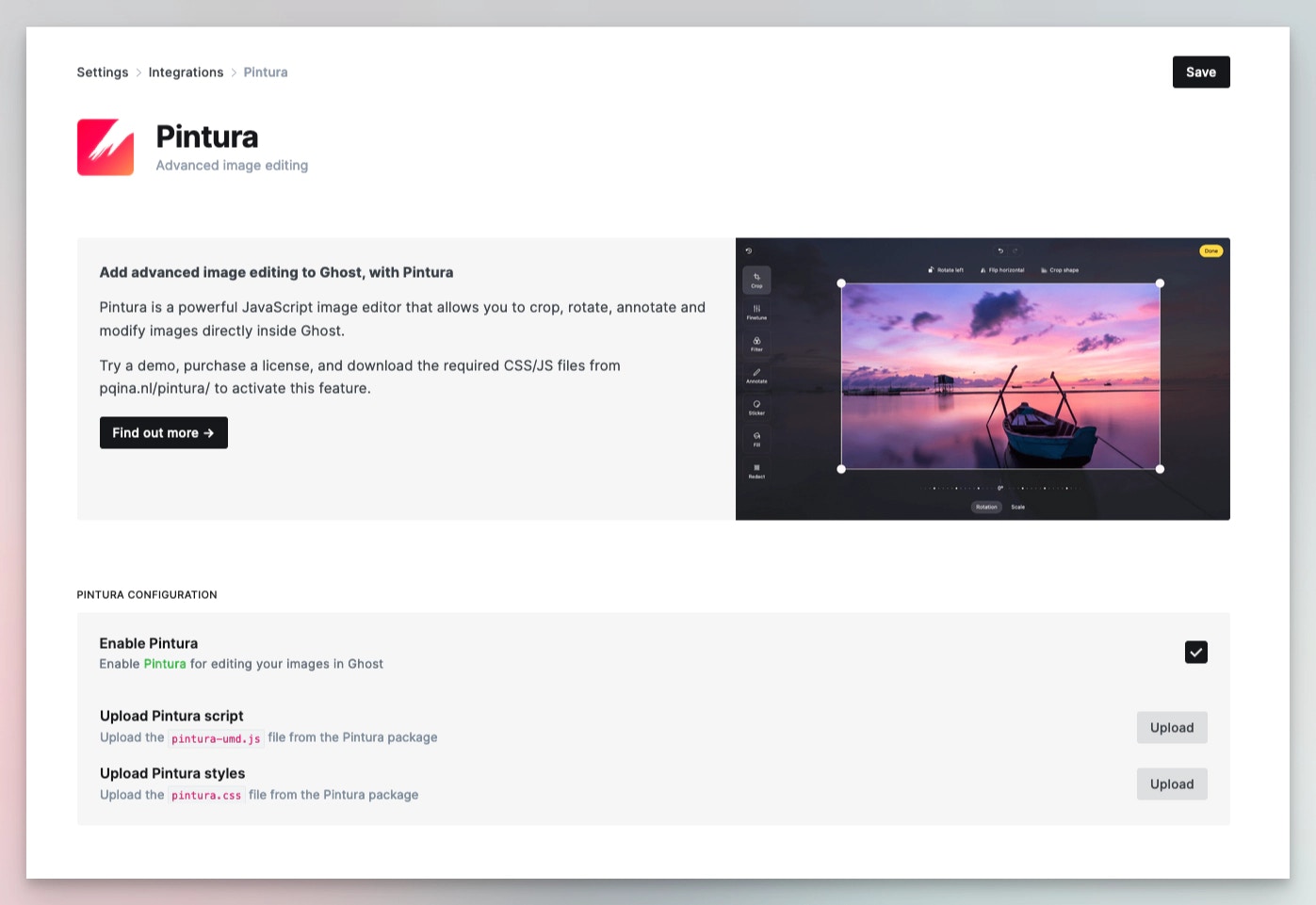
[Pintura](https://pqina.nl/pintura/) is an image editor that integrates with Ghost. After purchasing a license, upload the JS and CSS files via **Integrations** → **Pintura**.
 ### Portal
Ghost automatically loads the scripts for Portal from jsDelivr.net. The default configuration is shown below.
The script can be relocated by changing the URL, or disabled entirely by setting `"url": false`.
```json theme={"dark"}
"portal": {
"url": "https://cdn.jsdelivr.net/npm/@tryghost/portal@~{version}/umd/portal.min.js"
}
```
### Search
Ghost automatically loads the scripts & styles for search from jsDelivr.net. The default configuration is shown below.
The script and stylesheet can be relocated by changing the URLs, or disabled entirely by setting `"url": false`.
```json theme={"dark"}
"sodoSearch": {
"url": "https://cdn.jsdelivr.net/npm/@tryghost/sodo-search@~{version}/umd/sodo-search.min.js",
"styles": "https://cdn.jsdelivr.net/npm/@tryghost/sodo-search@~{version}/umd/main.css"
},
```
### Comments
Ghost automatically loads the scripts & styles for comments from jsDelivr.net. The default configuration is shown below.
The script and stylesheet can be relocated by changing the URLs, or disabled entirely by setting `"url": false`.
```json theme={"dark"}
"comments": {
"url": "https://cdn.jsdelivr.net/npm/@tryghost/comments-ui@~{version}/umd/comments-ui.min.js",
"styles": "https://cdn.jsdelivr.net/npm/@tryghost/comments-ui@~{version}/umd/main.css"
}
```
### Portal
Ghost automatically loads the scripts for Portal from jsDelivr.net. The default configuration is shown below.
The script can be relocated by changing the URL, or disabled entirely by setting `"url": false`.
```json theme={"dark"}
"portal": {
"url": "https://cdn.jsdelivr.net/npm/@tryghost/portal@~{version}/umd/portal.min.js"
}
```
### Search
Ghost automatically loads the scripts & styles for search from jsDelivr.net. The default configuration is shown below.
The script and stylesheet can be relocated by changing the URLs, or disabled entirely by setting `"url": false`.
```json theme={"dark"}
"sodoSearch": {
"url": "https://cdn.jsdelivr.net/npm/@tryghost/sodo-search@~{version}/umd/sodo-search.min.js",
"styles": "https://cdn.jsdelivr.net/npm/@tryghost/sodo-search@~{version}/umd/main.css"
},
```
### Comments
Ghost automatically loads the scripts & styles for comments from jsDelivr.net. The default configuration is shown below.
The script and stylesheet can be relocated by changing the URLs, or disabled entirely by setting `"url": false`.
```json theme={"dark"}
"comments": {
"url": "https://cdn.jsdelivr.net/npm/@tryghost/comments-ui@~{version}/umd/comments-ui.min.js",
"styles": "https://cdn.jsdelivr.net/npm/@tryghost/comments-ui@~{version}/umd/main.css"
}
```